8 Must-Have Features in an Event Photo Sharing Tool
If guests have to download an app or make an account, many of them won’t upload at all. I’d look for a tool that lets people scan a QR code, upload from their browser, see photos appear in a live gallery, and lets the host review, show, protect, and download everything with little effort.
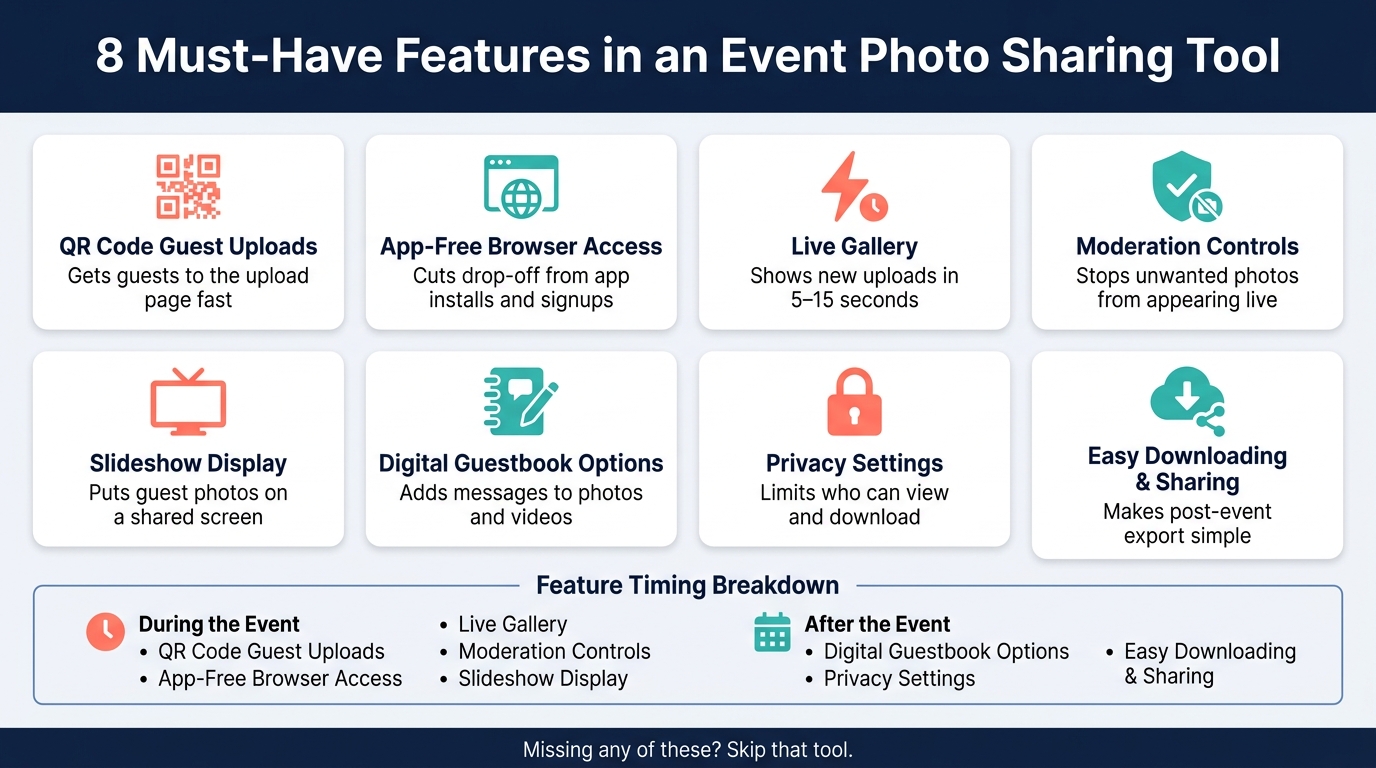
In short, I’d check for these 8 must-have features:
- QR code uploads so guests can join fast
- Browser-based access with no app or login
- Live gallery updates that show new photos in about 5–15 seconds
- Moderation controls to review content before it appears on screen
- Slideshow mode for TVs and projectors
- Digital guestbook tools for notes tied to each photo or video
- Privacy controls like passwords, PINs, role access, and upload windows
- Bulk download and sharing so hosts can export all files at once
That mix solves the main problems at weddings, birthdays, and work events: low guest participation, messy file collection, screen risk, and post-event download headaches.
8 Must-Have Features in an Event Photo Sharing Tool
Quick Comparison
| Feature | What it solves |
|---|---|
| QR Code Guest Uploads | Gets guests to the upload page fast |
| App-Free Browser Access | Cuts drop-off from app installs and signups |
| Live Gallery | Shows new uploads right away |
| Moderation Controls | Stops unwanted photos from appearing live |
| Slideshow Display | Puts guest photos on a shared screen |
| Digital Guestbook Options | Adds messages to photos and videos |
| Privacy Settings | Limits who can view and download |
| Easy Downloading and Sharing | Makes post-event export simple |
My takeaway: if a tool doesn’t cover these eight points, I’d skip it and compare other event photo sharing methods instead. You want something that keeps uploads simple during the event and file cleanup simple after it.
sbb-itb-46c9b96
1. QR Code Guest Uploads
QR code guest uploads are one of the easiest ways to gather event photos and videos in one place during an event. Guests scan the code, a browser page opens, and they can upload straight from their phone’s photo library. It’s a simple setup, and that matters. More guests tend to join in, especially people who aren’t comfortable with apps or don’t want to install anything for a one-night event.
That said, the setup alone won’t do all the work. Where you place the QR code, and how easy it is to scan, has a big effect on participation.
For seated events like weddings or birthday dinners, a few spots usually do the job well:
- Table cards
- An entrance sign
- One busy area like the bar or photo booth
A short reminder from the DJ or MC can help a lot too:
"Scan the QR on your table to share your photos tonight"
The QR code should send guests straight to the upload page, not a generic homepage. That cuts friction and makes the process feel almost instant. It also helps if the code is available to download as PNG or SVG, and if the upload screen is built for phones with clear buttons like "Add Photos" or "Open Camera."
Before printing anything in bulk, test the code on both iPhone and Android under the same lighting you’ll have at the event. Glare, dim corners, and awkward sign placement can make scanning harder than you’d expect.
2. App-Free Browser Access
Asking guests to download an app before they can share photos is one of the fastest ways to lose participation. That drop-off happens fast. Once people have to install something and create an account, many of them just stop.
The upload page should open right away in Safari or Chrome. No app store. No login screen. In a smooth setup, guests can go from scan to upload in under 30 seconds.
After the QR code works, the next thing that matters is the upload flow itself. It needs to work well on both iPhone and Android, with a mobile-friendly layout and a clear upload button. It should also handle multiple files in common formats like JPEG, PNG, HEIC, and WebP.
Skip account creation altogether. Guests should be able to upload at once, then add a name or short message if the tool gives them that option. Every extra step gives people one more reason to bail.
Before the event, run through the full process on both iPhone and Android. A quick test can catch the small stuff that trips people up.
When the browser flow is this easy, guests keep moving and uploads keep coming.
3. Live Gallery
Once uploading feels simple, people want to see their photos and videos show up right away. That’s where a live gallery comes in. It pulls every upload into one shared space and updates on its own as new files come in. No manual refresh. No extra steps.
Speed matters here. New uploads should appear within 5–15 seconds. Once you get past 30 seconds, it starts to feel slow.
That fast feedback loop does more than look nice. It pushes people to upload more. When guests see new photos pop up almost at once, they keep joining in. The gallery starts to feel like part of the event itself, not just a place where files go to sit.
Once the live feed is working, the next thing to check is organization. A good gallery should let you sort by:
- Newest
- Oldest
- Most Liked
- My Photos
Inline video playback also helps a lot. Instead of kicking people out to another screen or tab, videos stay in the gallery. Each clip should play for a set amount of time before the gallery moves on.
Before the event, test it with uploads from two or three phones at the same time. Make sure the gallery updates fast, looks clean on mobile and on a larger screen, and plays video the way it should.
4. Moderation Controls
Once uploads start pouring into the live gallery, moderation helps keep the event screen safe and on-brand. Without it, private or inappropriate photos can end up on display right in front of guests.
What should you look for? A review queue that holds each upload until you approve it, along with bulk approve/reject controls and a pause button for the live display. If you're running a bigger event, it also helps to pass review duties to someone else without giving them full control.
Role-based access makes that possible. A trusted friend, planner, or staff member can approve uploads without getting full admin access.
When uploads come in fast, speed matters just as much as control. A phone-friendly moderation screen with large approve/reject buttons makes a big difference. At a live event, you're often dealing with dim lighting, spotty Wi-Fi, and a packed schedule. In that kind of setting, fast and clear controls aren't just nice to have - they matter.
Moderation keeps the gallery useful in real time, not just after the event.
5. Slideshow Display
Once uploads are approved, the slideshow turns the gallery into a shared event display. Open the event gallery on a laptop, then send it to a TV or projector through HDMI or wireless casting. You don’t need extra software. It should run right in the browser and move from one image to the next on a timer.
When the slideshow is live, keep the screen clean and easy to follow. Look for true full-screen mode so browser tabs, buttons, and other controls stay off the display. It also helps when the on-screen controls fade after a few seconds with no activity. That way, the photos stay front and center instead of the interface.
A few simple controls matter a lot during a live event:
- Pause and skip help you stay in control. You can hold on a group photo during a toast or move past an image that slipped through moderation.
- A toggleable QR code overlay gives late arrivals a clear way to join in. Put the upload link right on the screen so guests can scan it and add their photos on the spot.
Screen placement matters too. Put it where people already drift during the event, like near the bar, by the food stations, or close to the dance floor. When guests spot their own photos on the big screen, more uploads usually follow.
6. Digital Guestbook Options
Once photos show up in the gallery or slideshow, captions are what give them heart. A digital guestbook lets guests add a note to each photo or video, so you don’t just get a stream of images - you get the story that goes with them.
That matters most at weddings, anniversaries, retirements, and milestone birthdays, where the feeling behind a photo can matter just as much as the image itself. A simple first-dance photo, for example, means a lot more when guests can add a memory or quick reaction.
When you're looking at a tool's guestbook feature, start with the basics: each message should link directly to a specific upload. If the note and the photo stay together, the moment makes sense later too.
Hosts also need a few simple controls:
- Caption moderation
- Input filtering
- The option to delete individual messages
- Export support so captions stay paired with matching photos and videos
Once messages are tied to uploads, privacy settings are the next thing to check.
For family events, engagement party photo sharing, and corporate events, character limits and basic moderation rules help keep messages appropriate and easy to read on slideshow screens. That kind of control can make the feature feel polished at a company offsite and personal at a wedding.
7. Privacy Settings
Not every event gallery should be public. The right tool gives hosts clear control over who can view, download, and access the gallery - without making guests jump through hoops. When privacy is simple and easy to spot, people are more likely to share.
Privacy matters because guests upload more when they trust who can see the gallery. The first thing to look at is access restriction. Galleries should be private by default, hidden from search engines, and available only through the event link or QR code, with password or PIN protection. That setup makes a big difference. If guests know the gallery is private and access is controlled, they tend to feel much more at ease sharing photos and videos.
Download permissions should also fit the event. For a family event, open downloads may be fine. For a corporate event, it often makes more sense to limit full-resolution files to admins. Being able to set those rules for each event helps keep privacy in line with the setting.
For corporate events, role-based access is a must-have. Admins may need permission to view, upload, export, or limit access based on role. Domain-restricted access tied to company email domains adds one more layer of protection for internal events and sensitive sessions.
It also helps to control timing. Set an upload window - 1, 3, 7, or 30 days - and add an expiration date so uploads stop when the event is over. Expiration or auto-delete rules help keep files from sitting online longer than they should. Once access is locked down, the next piece is making downloads and sharing fast.
8. Easy Downloading and Sharing
Once privacy is handled, the next thing to look at is export. You want a tool with one-click bulk ZIP export so you can download all photos and videos in one shot. That matters even more for big weddings or multi-day corporate events, where you might end up with hundreds or even thousands of files.
Original quality matters too. The best tools keep uploads in their original resolution. No compression, no resizing, and no watermarking unless the host picks a smaller export. PartyLab supports downloads in JPEG, PNG, HEIC, WebP, MP4, and MOV, which covers the formats most guests use on modern phones.
It also helps when post-event download access stays open long enough to export everything. If that access window is too short, pulling all your files after the event can turn into a scramble.
Sharing should be just as easy. A shareable gallery link lets hosts send the full collection to guests or vendors without messing with manual file transfers. For corporate events, that makes reporting and promotion a lot easier.
Feature-to-Need Comparison Table
Here’s the quick comparison version. The table below maps each feature to its core need.
| Feature | Primary Need |
|---|---|
| QR Code Guest Uploads | Fast guest uploads |
| App-Free Browser Access | No app install |
| Live Gallery | Real-time visibility |
| Moderation Controls | Approve before display |
| Slideshow Display | Venue-screen playback |
| Digital Guestbook Options | Capture notes with photos |
| Privacy Settings | Limit access |
| Easy Downloading and Sharing | Fast post-event export |
Guest participation features - QR codes and app-free access - work best as a pair. One gets guests to the page. The other removes friction once they get there.
Moderation controls what appears. Privacy controls who gets to see it. For corporate events, that split matters.
Live gallery and slideshow features do their best work during the event. Downloads and guestbook features matter more after the event, when you need to save, share, and look back on what people added.
Use this breakdown to compare tools based on the main problem you need to solve.
Conclusion
The best photo sharing apps for events do more than hold files. They help guests upload fast, display media live, and make exports easy after the event. That makes the buying decision pretty simple: focus on the features that cut friction and keep the gallery safe.
For weddings, birthdays, and corporate events, the right mix of uploads, moderation, and privacy keeps participation high without making things harder for guests or organizers.
Check three basics:
- Guests can upload fast
- You can approve content before it goes live
- You can export the full gallery in a few clicks
If a tool misses any of those, pass on it. The best options make sharing easy during the event and cleanup simple after it.
FAQs
How many guests can upload at once?
That depends on the event package you choose.
Some events support up to 100 guests. Others allow up to 500 guests. And some come with no guest cap at all.
During live events, the platform can handle multiple uploads at the same time without data loss. So photos and videos are collected reliably while everything is happening.
Can I use it without Wi-Fi?
No. PartyLab needs an active internet connection, either through Wi-Fi or mobile data.
Guests have to be online to upload photos to the live gallery, and the slideshow also needs a connection to update in real time.
What happens to files after the event?
After the event, you can download all collected photos and videos in one ZIP file, with the original quality preserved and filenames that make sense. You’ll also get a media summary 24 hours after the upload window closes.
Your gallery stays available for 3 months to 1 year, depending on your plan. After that, the files are deleted automatically for privacy and data security.