QR Code Table Card Checklist for Photo Uploads
If guests can’t scan in 2 to 3 seconds, many of them won’t upload at all. I’d check six things before printing: the live upload page, short card copy, QR code spacing, print size, card count, and table placement.
Here’s the short version: build and test the upload page first, use one clear call to action, keep the QR code at at least 1 inch square, add a short backup URL, print one card per table plus 2 to 4 extras, and scan every card at the venue before guests arrive. That matters because mobile users often leave slow pages within seconds, and poor signage can cut response rates fast.
If I wanted a card that guests would use, I’d make sure it does these things:
- Opens the final upload page, not a draft or setup link
- Works on iPhone and Android
- Lets guests upload both photos and videos
- Uses short text people can act on at a glance
- Keeps a blank margin around the QR code
- Includes a short, easy-to-type fallback URL
- Fits the table without blocking place settings
- Stays visible in dim light, busy rooms, and outdoor setups
A few numbers make the checklist easier to apply:
- 4 x 6 inches is a solid default card size
- 5 x 7 inches gives more room if needed
- 1 inch square is the minimum QR size
- 1.25 to 1.5 inches works better for outdoor use or longer scan distance
- Print at 300 DPI or higher
- Use 80 lb to 110 lb matte cardstock
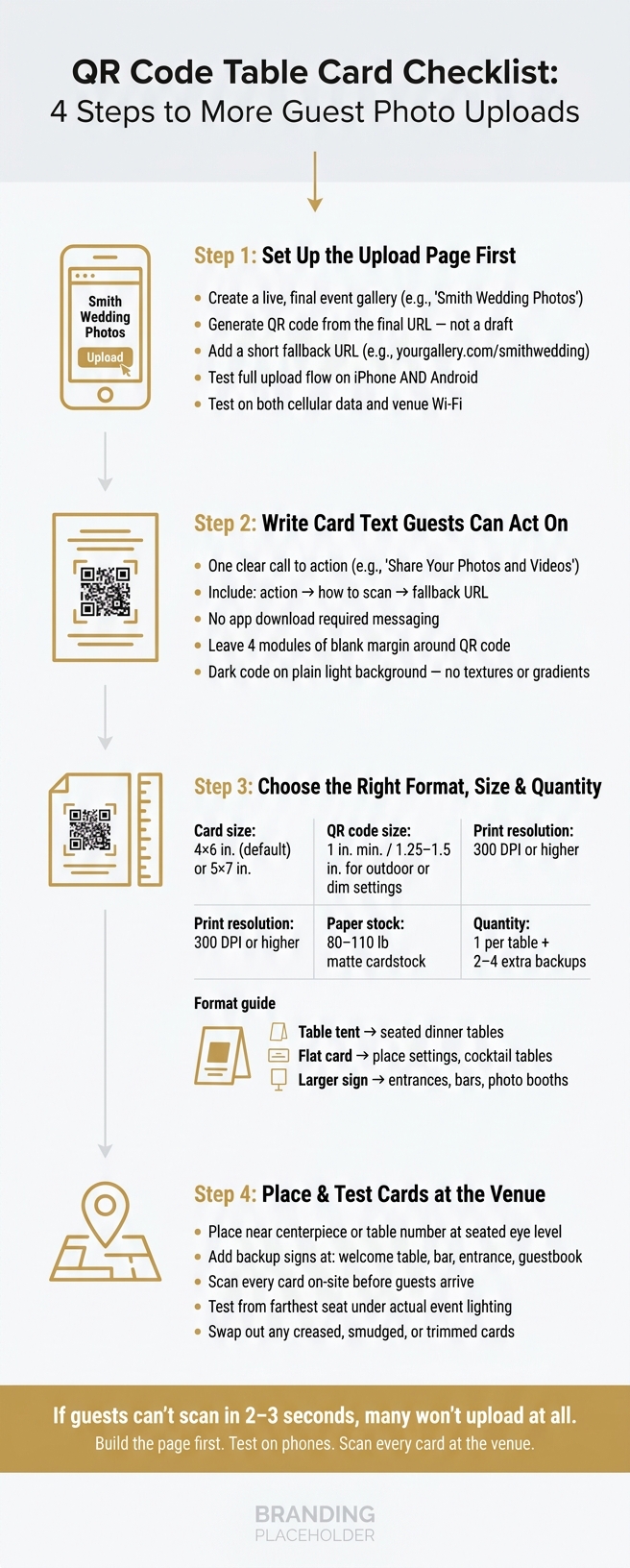
QR Code Table Card Checklist: 4 Steps to More Guest Photo Uploads
How to Add a QR Code to Canva Table Seating Templates | Step-by-Step Tutorial
sbb-itb-46c9b96
Quick Comparison
| Item | What I’d aim for | Why it matters |
|---|---|---|
| Upload page | Live, final event URL | Avoids broken or wrong scans |
| Card copy | One action + scan note + fallback URL | Cuts confusion |
| QR code | Dark code on light background with blank space around it | Helps phones scan fast |
| Card size | 4 x 6 in. or 5 x 7 in. | Fits most table setups |
| QR size | 1 in. minimum; 1.25–1.5 in. in harder conditions | Helps from more seats and angles |
| Quantity | 1 per table + 2–4 extras | Covers damage and busy areas |
| Placement | Near centerpieces, table numbers, bars, or entrances | Keeps the prompt in view |
| Final test | Scan on-site under event lighting | Catches print and placement issues |
The main idea is simple: if the card is easy to spot, easy to scan, and easy to understand, more guests will use it. For more inspiration, check out our event photo guides.
1. Set up the upload destination before designing the card
Build the upload page first. Then design the card around that finished page.
The card should send guests to a live upload page, not a draft, setup link, or half-finished version. Lock in the upload page before you touch the card design.
Create the gallery, QR code, and short fallback URL
Start with an event-specific gallery name guests will know right away, like "Smith Wedding Photos" or "Jordan's 30th Birthday." That simple detail helps people feel sure they landed in the right place. PartyLab creates a printable QR code that opens an upload page in a mobile browser with no app download.
After the gallery is live, generate the QR code from the final event URL. Don't use a draft link or setup link. Add a short fallback URL that guests can type if scanning doesn't work, such as yourgallery.com/smithwedding.
Keep that backup link simple:
- Use short, easy-to-read words
- Skip long strings and tracking parameters
- Avoid confusing characters
Before printing, confirm the page settings, including privacy, moderation, and allowed photo and video formats.
Once the link is working, test it on actual phones before you print anything.
Test the full upload flow on a phone
Next, test the whole mobile path. A scan test by itself isn't enough.
Run the full flow from start to finish:
- Scan the code
- Open the page
- Select a photo
- Upload it
- Make sure it appears in the gallery
Then do the same with a short video. Test on both iPhone and Android camera apps.
Also test in two conditions: once on cellular data with Wi-Fi turned off, and once on the venue's Wi-Fi. A page can work fine at home and still break at the event if the venue Wi-Fi has a sign-in screen or weak coverage.
If the page fails on a phone, the card fails at the table. Fix slow loading, a missing upload button, or file rejection before printing.
2. Write card text guests can act on in seconds
Now that the upload page is live, the card needs to do one job: help guests scan and upload fast. Keep the copy short, easy to read, and easy to follow. Then make sure the QR code has enough room to scan without trouble.
Use short card text with one clear action
A simple three-part structure works well: the action, how to scan, and a fallback.
Here’s a practical version:
Share Your Photos and Videos Scan the QR code with your phone camera. Tap the link to upload. No app needed. Can't scan? Visit:
example.com/our-event
Put the benefit first, the action next, and the reassurance last. That way, guests know what they’re getting, what to do, and what they don’t need to worry about.
Place the fallback URL right under the QR code in text people can read without squinting. If you're using PartyLab, send the short link to the event gallery.
Only add a moderation note if uploads are reviewed before they appear. Stick to one QR code and one fallback URL. Don’t turn the card into a fork in the road with multiple codes.
Skip lines like “Download our app” or “Open your QR reader.” That kind of wording adds friction. At the table, people should know what to do at a glance.
Leave enough clear space around the QR code
Once the wording is tight, protect the part that matters most: the scan.
Leave at least four modules of empty space around the QR code. Keep that margin completely blank. No text, no borders, no logos, and no decorative lines inside it.
Use a dark code on a plain, light background so the contrast is strong. Don’t place the code on top of photos, textures, patterns, gradients, or glossy finishes. Matte card stock is a simple, dependable pick.
Write for seated guests. They should be able to read the card and scan the code without picking it up, turning it, or moving things around.
3. Choose the right card format, print size, and quantity
Once the QR code and copy are locked in, line up the card format with the venue setup.
Pick a format that fits the table layout
Choose the format based on where guests will scan it. If people can’t spot the card, they probably won’t use it.
A table tent is usually the best default for seated dinner or reception tables. This setup is also effective for anniversary party photo ideas where capturing family moments is a priority. It stands on its own, stays in view, and can be seen from more than one seat. A flat card makes more sense next to a place setting, on a cocktail table, near a buffet, or by a guest book, where an upright tent may feel crowded or get bumped. In busier areas, a larger sign tends to work better for standing guests.
| Format | Best use | Pros | Limits |
|---|---|---|---|
| Table tent | Seated dinner or reception tables | Stands upright; visible from several seats; compact | Can tip over from wind, drinks, or table activity |
| Flat card | Place settings, cocktail tables, buffet tables, or guest books | Simple to print; easy to distribute; less visually intrusive | May be hidden by plates, décor, or personal items |
| Larger sign | Entrances, bars, lounge areas, photo booths, patios, or outdoor gathering points | More visible at a distance; supports a larger QR code | Needs an easel, frame, stand, or wall-safe mounting |
A simple rule of thumb: use table tents at seated tables, and place larger signs at entrances, bars, and photo areas. Similar logic applies to engagement party photo sharing to ensure no reaction is missed.
Match print size and card count to the venue plan
Start with 4 × 6 inches as the default size. Move up to 5 × 7 inches if you need more space.
For the QR code itself, make 1 inch square the minimum. Go with 1.25–1.5 inches for outdoor use, dim lighting, or cases where guests may scan from across the table. Export the file as a high-resolution PDF or vector file, and print at 300 DPI or higher so the code stays crisp. For paper stock, use 80–110 lb matte cardstock.
When it comes to quantity, count by the number of guest tables, not total guests. In most cases, one card per table is enough. Then print 2–4 extra copies as backups. Keep those spare cards with the planner or venue coordinator instead of putting every copy out at once.
After printing, place the cards where guests are most likely to notice them right away.
4. Place and check cards at the venue
Printing the card is only half the job. Placement is what turns it into something guests will spot and scan without thinking twice. Then comes one last pass to make sure every card still works once it's in the room.
Position cards where guests will see them indoors and outdoors
At each table, place the card upright at about eye level for someone who's seated. A good spot is near the centerpiece or table number. Just don't let it get hidden behind tall flowers, candles, glasses, or other table items.
If one side of the table can't see the card well, move it or add a second card on the other side. On long banquet tables, use more than one card so guests don't have to lean across the table or hunt for it.
It's also smart to add at least one larger backup sign in a busy area, such as:
- the welcome table
- the bar
- the guestbook table
- the entrance
These spots work well because guests tend to pause there when they arrive, stand in line, or decide to upload later. If you're using PartyLab, you can print the same gallery QR code on both table cards and backup signs, so every scan goes to one shared upload destination.
The same idea applies outdoors: keep the code easy to see and easy to scan. Sunlight can create glare, and wind can twist or knock over a card. Use weighted holders or clips to keep cards facing the right way. A matte, weather-resistant finish also helps cut glare.
Do a final scan check before the event starts
Once the cards are in place, test them in the actual room, not just during setup.
Before doors open, scan every card in the venue with a phone. Make sure each one is upright, visible, and facing guests. Check that trimming or folding hasn't cut into the QR code or the blank border around it. If a card is creased, smudged, or trimmed too close, swap it out before guests arrive.
Test from a few different seats at each table, including the farthest seat and any dim corner. Scan under the venue's actual lighting too. A card that looked fine during setup can act very differently once the room lights are lowered.
Also check that the short fallback URL is printed clearly on every card, and make sure the host or venue staff has that URL ready in case someone needs a hand.
Conclusion: A simple checklist for faster guest uploads
Before you print, give everything one last pass:
| Checklist Item | What to Verify |
|---|---|
| Gallery is live | QR code opens the correct upload page |
| Upload flow works | Tested on both iPhone and Android over cellular data |
| Card copy is clear | One instruction, no jargon |
| Clear margin is intact | No text, borders, or decorations inside the blank border |
| Fallback URL is readable | Short, lowercase, easy to type, and tested |
| One card per table | Plus spares for the bar, entrance, or other high-traffic spots |
| Venue scan test done | Scanned from a seated position under actual event lighting |
If you're using PartyLab, wait to generate the printable QR code until your gallery settings and destination link are final. That way, every card sends guests to the right upload page, and they can upload from their phones without an app.
Use one card per table, add a short fallback URL, and do one last scan test at the venue to keep uploads simple.
FAQs
What if guests still don’t upload?
Keep participation simple and active: put a QR code on every table with “Scan to share your photos,” make one clear MC announcement, and leave the upload window open for a few days, or even up to a week.
Guests can upload straight from their browser with no app or account, and the live gallery updates right away.
Should I use more than one card per table?
In most cases, one card per table is enough to collect photos well. A single QR code on each table - on the menu, wedding program, or a small sign - usually gives guests an easy way to open the PartyLab upload page.
The main thing is simple: make sure the code is easy to see and easy to scan. Adding more than one card per table usually isn’t needed, and it can make the table look crowded.
What should I do if the venue has poor signal?
If your venue has poor signal, ask guests to scan the QR code and upload later, once they have a stable connection or after the event.
Because PartyLab runs right in a phone browser, with no app needed, guests can come back to the gallery link anytime and share their photos when reception is better.