
Live Event Slideshow: Photo and Video Settings
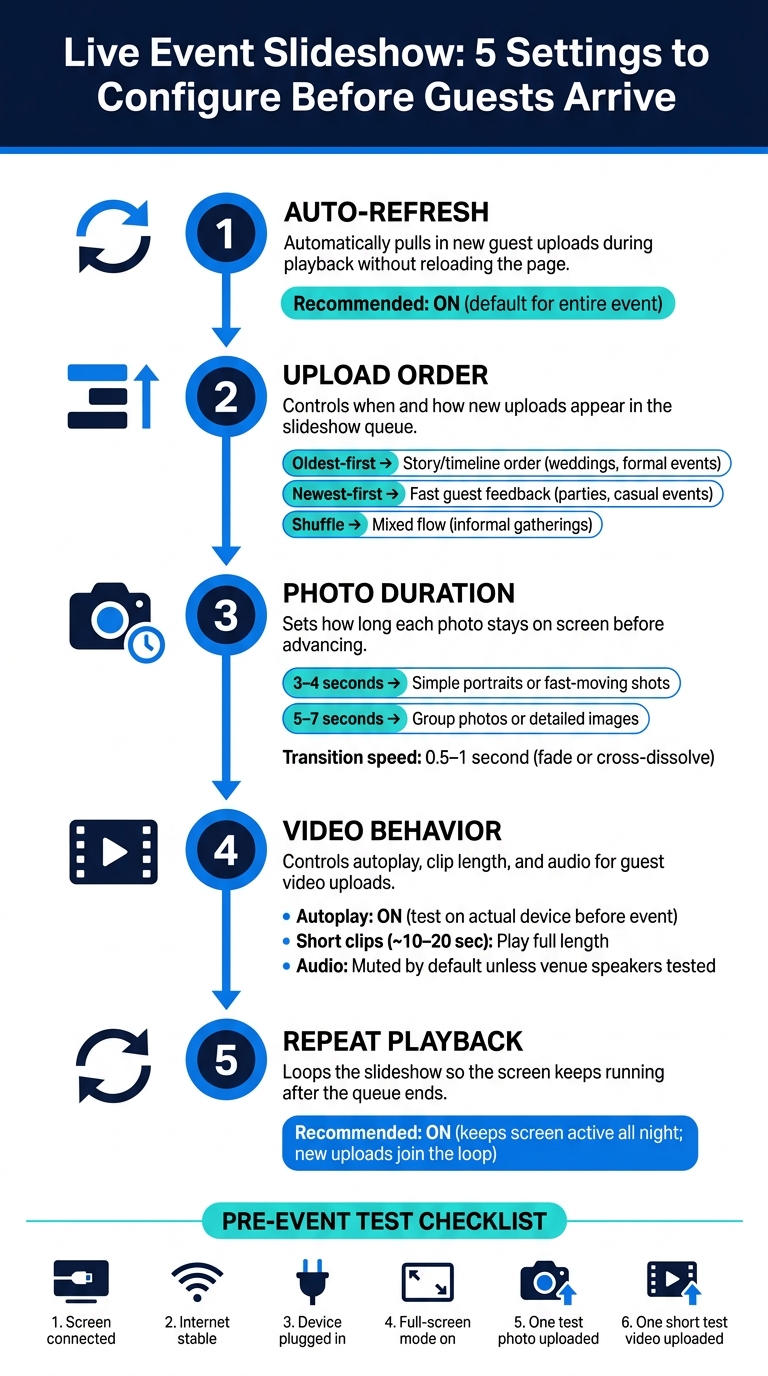
If I want a live slideshow to run well, I set five things before guests arrive: auto-refresh, upload order, photo time, video rules, and repeat playback. That’s what keeps new uploads showing on screen without me reloading the page or fixing the setup all night.
Here’s the short version:
- Auto-refresh: I leave it on so approved uploads appear during the event.
- Upload order: I pick oldest-first for story order, newest-first for fast guest feedback, or shuffle for a mixed flow.
- Photo timing: I use 3–4 seconds for simple shots and 5–7 seconds for group photos.
- Video playback: I test autoplay in advance, let short clips play, and mute audio unless speakers are ready.
- Repeat playback: I turn on loop so the screen keeps running after the queue ends.
- Setup check: I test the screen, internet, power, full-screen mode, and one photo plus one short video before start time.
A live slideshow is not a fixed deck. It updates as guests upload from their phones. In most cases, one short test before the event can prevent the main screen problems: missing uploads, frozen playback, sleep mode, weak Wi-Fi, and videos that won’t autoplay.
Quick comparison
| Setting | What I use it for | Common choice |
|---|---|---|
| Auto-refresh | Pull in new uploads during playback | On |
| Upload order | Control when new items appear | Oldest-first or newest-first |
| Photo duration | Set slideshow pace | 3–7 seconds |
| Video behavior | Control autoplay, length, and audio | Short clips, muted by default |
| Repeat playback | Keep screen active after queue ends | On |
If I set those controls early and test the full upload-to-screen flow, the slideshow usually keeps moving with little hands-on work.
Live Event Slideshow Setup: 5 Key Settings Checklist
Set Up the Display Before Guests Arrive
Open the slideshow, connect it to the venue screen, and test everything before people walk in. That one step makes a big difference. If the display is stable, new uploads can show up as they come in using instant QR photo sharing.
Connect the Screen and Display Device
Use the playback device you trust most for browser support, power, internet, and screen connection. In most cases, a laptop is the easiest pick. It gives you a full desktop browser and usually connects to a TV or projector through HDMI without much fuss. A tablet can also work if you have the right adapter or wireless display option. A smart TV browser is more of a last resort unless you've already tested it and know it can run the slideshow for the entire event.
If you want the most dependable setup, use HDMI. Connect the cable to the playback device and the display, switch the TV or projector to the correct HDMI input, and set the computer to mirror or duplicate the screen. If your device only has USB-C ports, use a matching USB-C-to-HDMI adapter.
Wireless casting can work too. AirPlay is a fit for Apple devices, and Chromecast works through Chrome on a laptop. In both cases, the sender and receiver need to be on the same Wi-Fi network. If casting starts acting up, don't fight it. Switch to HDMI.
| Method | Best for | Key requirement | Main risk |
|---|---|---|---|
| HDMI | Most dependable venue setup | Compatible cable or adapter; right display input | Cable or adapter issues |
| AirPlay | Apple devices and compatible TVs | Same Wi-Fi network | Network discovery or wireless interruptions |
| Chromecast | Chrome on a laptop or computer | Updated Chrome; Chromecast receiver; same Wi-Fi network | Casting the wrong tab or losing the connection |
| Smart TV browser | Minimal equipment | Compatible TV browser; reliable network | Limited browser performance or media support |
Keep the device plugged in the whole time. Turn off sleep, screen lock, and battery saver so the slideshow doesn't disappear in the middle of the event.
Also, test the internet where the screen is actually set up. A connection that looks fine near the router can fall apart across the room. The slideshow needs stable internet to load the gallery and pull in new uploads. It helps to have a tested hotspot ready in case the venue Wi-Fi flakes out.
Pre-Event Setup Checklist
Run through this before guests arrive:
- Display: TV, projector, or smart display is on; the right input is selected; brightness and volume are set.
- Playback device: Laptop or tablet has an updated browser open to the correct PartyLab slideshow link, not the guest upload page.
- Connection: HDMI, AirPlay, or Chromecast is tested and showing the slideshow on the venue screen.
- Power: Device, display, adapters, and any wireless receiver are plugged in; sleep and lock settings are off.
- Internet: Venue Wi-Fi or wired internet is stable at the display location; a tested hotspot is available if needed.
- Full-screen mode: Browser tabs, address bars, and desktop content are hidden from guest view.
- Event permissions: Confirm whether uploads require host approval before appearing in the slideshow.
- Content test: Show one approved photo on screen, or confirm the waiting screen so a blank display is not mistaken for a failure.
- Backup: Keep a spare cable, adapter, charger, or alternate display method available when feasible.
Once the screen is live, the next settings decide how uploads show up during the event.
Test one short video on its own. A photo test doesn't tell you whether video playback, audio, or browser permissions are working. After the display is stable, set auto-refresh and upload order so new photos and videos appear smoothly.
sbb-itb-46c9b96
Turn On Auto-Refresh and Control How New Uploads Enter the Slideshow
With the screen connected and the slideshow running, the next step is making sure new guest uploads actually show up on that screen during the event.
Use Auto-Refresh for Continuous Playback
Auto-refresh pulls in approved uploads while the slideshow keeps playing, so you don't have to reload the page. That keeps things smooth, especially when guests are sending in photos all night.
That said, uploads don't appear right away. Processing, moderation, and queue position all add delay. If moderation is on, uploads stay hidden until you or a designated reviewer approves them. For bigger events, it's smart to have someone watch the approval queue from a phone or laptop so the slideshow doesn't stall.
Once uploads start coming in, the next choice is the order they should appear.
Auto-Refresh vs. Manual Refresh vs. Restarting the Slideshow
Use auto-refresh during the event. Save refresh or restart for troubleshooting.
| Action | Effect on playback | When to use it |
|---|---|---|
| Auto-refresh | New uploads join the queue automatically while playback continues | Default setting for the entire event |
| Browser refresh | Reloads the slideshow page and interrupts the current item, resets position, and requires fullscreen to be restored | Only if an approved upload is not appearing or the page seems stale |
| Restarting the slideshow | Starts the presentation again from the beginning | After a freeze, a connection recovery, or a settings change that has not loaded correctly |
If an approved upload still doesn't appear after a short wait, first check that the browser tab is online and that auto-refresh is turned on. In many cases, that's the issue. Only then should you try a browser refresh.
Choose the Order New Uploads Play
Upload order changes how people experience the slideshow. It sounds small, but it affects the feel of the whole room.
Oldest-first shows uploads in the order they arrive, so the event unfolds step by step. This works well for weddings, milestone birthdays, and formal corporate events where sequence matters.
Newest-first fits a fast-moving birthday party or casual networking event. Guests get quick feedback when their photo appears on screen, which can make participation feel more fun. The tradeoff is that older uploads move later in the queue, and the timeline runs in reverse.
Shuffle helps avoid showing the same faces back-to-back and works well for informal gatherings. But if you're trying to preserve the order of ceremony moments, it's usually not the best fit.
If the platform offers a newest-first, then full-rotation mode, test it before the event so you can see exactly how it handles the queue.
Next, set how long photos stay on screen and how videos play.
Set Photo and Video Playback Timing
After upload order, timing sets the rhythm. It decides how long each photo stays on screen and how videos move through the slideshow.
Set Photo Duration and Transition Speed
Use 3–4 seconds for portraits or fast-moving event shots. Give 5–7 seconds to group photos or images with lots of detail.
Keep transitions short, around 0.5–1 second. In most cases, a simple fade or cross-dissolve does the job. Longer effects eat into viewing time and can make the slideshow feel sluggish.
Decide Whether Videos Play Fully and With Audio
Set videos to autoplay on the venue screen. Then test that autoplay on the actual setup, because browsers and devices don’t always behave the same way.
For short clips, let them play all the way through. For longer videos, set a cap or skip them so they don’t clog the queue. If your platform has a max video length or skip setting, turn it on.
Keep audio muted by default unless you’ve tested the venue speakers with a clip that includes both speech and music.
Timing Guide: Photos, Short Videos, and Longer Videos
| Content type | Display duration | Finish playback? | Audio | Effect on pace |
|---|---|---|---|---|
| Simple photo or portrait | 3–4 seconds | Auto-advance | N/A | Keeps the event energetic; more uploads per minute |
| Group photo or detailed image | 5–7 seconds | Auto-advance | N/A | Gives guests time to recognize faces and details |
| Short video (~10–20 seconds) | Full clip length | Yes | Enable only with suitable venue speakers; otherwise mute | Adds movement without stalling the queue |
| Longer video | Full length only if brief enough for the event; otherwise apply a platform limit or skip option | Only if brief enough | Mute unless audio is intentional | Can slow the slideshow significantly if unchecked |
Before the event, test one portrait photo, one landscape photo, one short clip, and one longer clip to check timing and playback. Make sure photos stay up for the right amount of time, videos autoplay, and the slideshow returns to normal playback after each clip. Use a fit setting when keeping the full image on screen matters, especially for portrait photos.
Enable Repeat Playback and Test the Full Slideshow Flow
Use Repeat Playback to Keep the Screen Running
Once your timing is set, turn on Repeat or Loop so the slideshow starts again when it reaches the end of the queue. That keeps the screen running through the entire event without manual restarts.
As the slideshow loops, new uploads keep joining the queue. So if someone uploads a photo during the second pass, that file can still show up in playback. Keep the device plugged in, awake, and online the whole time.
Run a Full Upload-to-Screen Test Before the Event
Before guests arrive, do a full upload-to-screen test using our event photo guides. Connect your laptop to the venue TV or projector, open the PartyLab slideshow in full-screen mode, then scan the event QR code with a separate phone and upload one photo and one short video.
With repeat playback turned on, run one complete end-to-end check. Make sure both files process, appear in the right order, stay on screen for the correct amount of time, autoplay with the right audio setting, and then loop back to the start. After that, upload a second test item during the loop to make sure new content joins the queue without interrupting playback.
Use the actual venue network and display for this test. Playback, HDMI, and audio can act differently on-site.
Conclusion: The Key Settings That Keep Your Slideshow Running
Auto-refresh, upload order, timing, and repeat playback are the settings that keep the slideshow moving without manual resets. They help new uploads show up, keep the pace under control, and keep the screen running all night.
Set up the display early, keep the device online and awake, and run one complete upload-to-screen test before the doors open. That’s usually the difference between a slideshow that runs smoothly all night and one that keeps needing attention.
FAQs
How fast do new uploads appear on the slideshow?
New uploads show up on the PartyLab slideshow in real time, often just seconds after a guest finishes uploading.
In most cases, guests will see their photos on the TV or projector within 30 seconds. That fast turnaround helps the slideshow feel live and interactive.
What should I do if a video won’t autoplay?
If a video isn't playing automatically in your PartyLab slideshow, first check whether your browser allows media autoplay. A lot of modern browsers block video playback unless someone has already interacted with the page or the video is muted.
A simple fix is to click anywhere inside the slideshow window. That often counts as user interaction and can get the video going.
It's also worth checking your internet connection. If your connection is slow or unstable, video loading in the live feed may lag or stall.
What is the best upload order for my event?
The best upload order is one that puts new uploads first. That keeps the slideshow feeling live and helps guests spot their photos and videos on screen fast.
In PartyLab, showing the newest content first makes the experience feel more dynamic and can encourage more guests to join in during the event.