
Leadership Retreat Photo Sharing with QR Codes
I’d use one gallery, one QR code, and one named administrator to keep retreat photo sharing simple. With PartyLab, attendees upload photos and videos through their phone’s browser - no app or account required.
Here’s the setup I’d follow:
- Set the rules: Check plan limits, explain who can view uploads, and keep participation optional.
- Test access: Try every QR code on iPhone and Android, check venue Wi-Fi, and provide a direct link.
- Guide uploads: Share file limits, a firm deadline, and rules against posting confidential material.
- Review before display: Test approval controls before running a live slideshow.
- Save the files: Export and check originals before access expires - three months on Starter or one year on Plus and Max.
My main rule: <u>A QR code makes access easier, not private.</u> I’d confirm gallery permissions before sharing it and keep the final archive in company-managed storage.
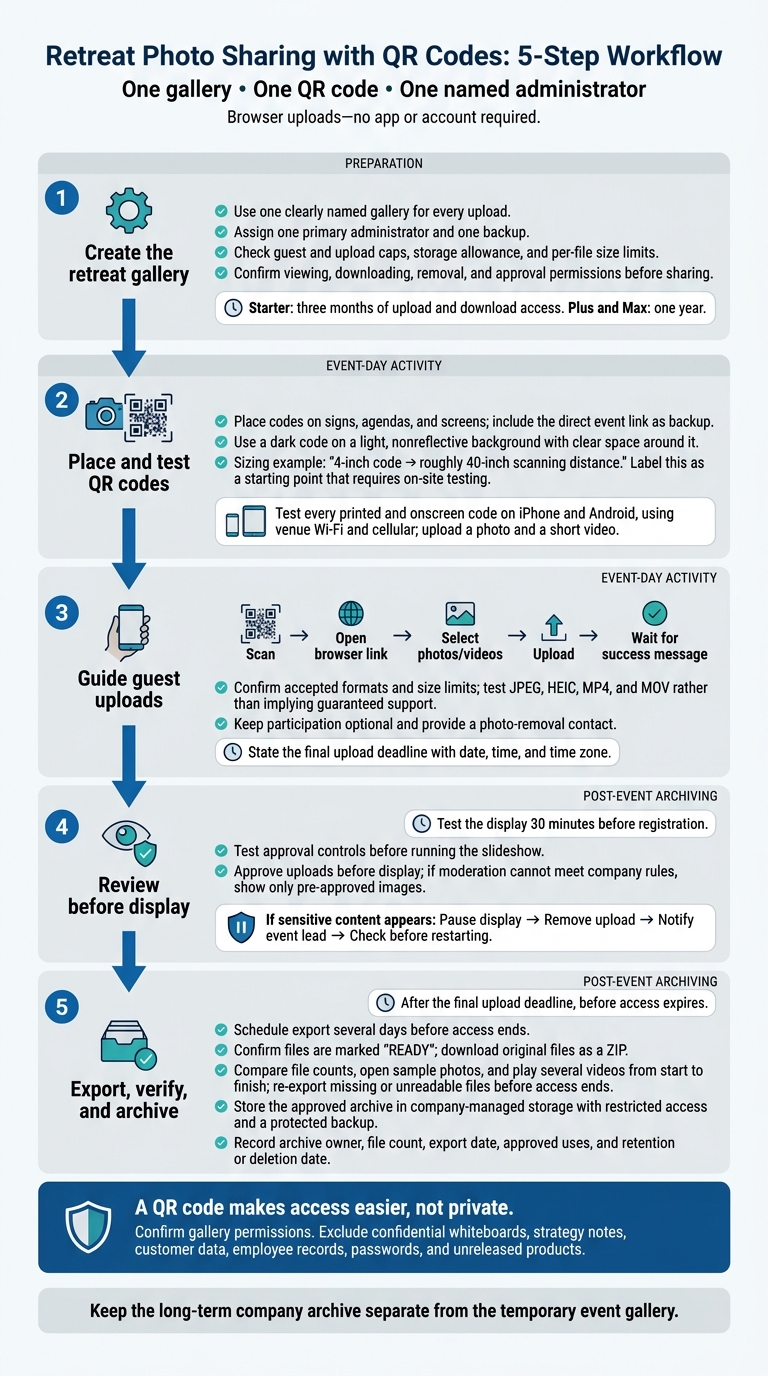
Retreat Photo Sharing with QR Codes: 5-Step Workflow
1. Create the Retreat Gallery
Set up one event gallery before attendees arrive. Give it a clear, searchable name that staff can find later. Include the organization, retreat name, and year:
“Acme Corporation - 2026 Leadership Retreat”
If your organization holds multiple retreats, add the location or dates:
“Acme Corporation - 2026 Leadership Retreat - Asheville - May 12–15.”
Use this gallery as the single destination for every retreat upload.
Check Plan Limits and Access Dates
Before buying, check the guest cap, upload cap, storage allowance, and per-file size limit. Leave room for late uploads and multiple photos per person.
Confirm the access window, too: Starter includes three months of upload and download access; Plus and Max include one year. Record the expiration date and schedule an export several days before it ends. That gives you time to download and inspect the archive while you still have access.
Assign an Administrator and Set Privacy Rules
Choose one primary administrator - such as the event lead, HR representative, or communications manager - and one backup. The primary administrator should handle the gallery, uploads, moderation, and export. Don’t rely on a contractor’s personal account if your organization will need access after the retreat.
Before sharing the QR code, confirm who can review and remove uploads, who can view and download files, and whether uploads need approval.
Put clear photography rules in the welcome message. Ask attendees to respect colleagues who decline photos and direct removal requests to the named administrator, along with a description of the upload.
Prohibit photos that show confidential whiteboards, strategy notes, customer data, employee records, passwords, or unreleased products. Check photo backgrounds for confidential material before approving uploads.
Once the gallery name, access window, and privacy rules are set, print the QR code and place it where attendees will use it.
sbb-itb-46c9b96
2. Place and Test the QR Codes
Once the gallery and privacy rules are set, put the QR code where attendees will use it. Download the printable code, then share the direct link in the pre-retreat email and digital agenda. Print a few spare copies, too.
Add QR Codes to Signs, Agendas, and Screens
Add codes to welcome signs, table tents, agendas, slides, and break-room displays. Choose spots where attendees naturally pause, away from walkways and exits. Keep signs at an accessible height and include a clear instruction:
“Scan to share retreat photos and videos. No app required.”
Print the direct event link beneath the code as a backup.
Use a dark code on a light, nonreflective background, with clear space around it. For larger signs, start with a code width of about one-tenth of the expected scanning distance.
For example, use a 4-inch code for scanning from roughly 40 inches away.
Before the retreat begins, test every code in the conditions attendees will encounter.
Test Scanning and Venue Wi-Fi
Scan every printed and onscreen version with both iPhone and Android devices from the distance guests will stand. Check room lighting and screen glare, and confirm that each code opens the correct gallery and upload page. Enlarge or move any code that doesn’t work on the first try.
Using venue Wi-Fi, upload a photo and a short video. Confirm that both appear in the gallery, then test cellular access, too. Ask the venue about sign-in screens, device limits, and upload restrictions. Share the Wi-Fi name and login steps beside the code or in the agenda.
If the connection fails, attendees can use the same direct link to upload later. Once the code works on-site, give attendees a simple upload flow and clear file limits.
3. Guide Guests Through Photo and Video Uploads
Once QR codes are visible and tested, repeat the upload prompt across guest-facing materials. During the welcome session, walk guests through the process using a session photo and a short clip from a retreat activity.
Explain How to Scan, Select, and Upload
Ask attendees to open their Camera app, scan the code, and tap the event link to open PartyLab in their browser. Show them how to select one or more photos or videos, or take a new photo in the browser if that option is available. Remind them to wait for the success message before leaving the page.
Make the sharing rules clear:
- Share: Candid team activities, group photos, approved speaker moments, and short retreat clips.
- Don’t share: Confidential strategy discussions, unreleased product information, private employee matters, personal data, or confidential slides.
Give guests a way to opt out of photos or request removal. Explain whether uploads appear immediately or need review, and apply the same confidentiality rules to guestbook messages.
Check Video Formats and File Sizes
Before publishing instructions, confirm accepted file types and per-file size limits. Test JPEG, HEIC, MP4, and MOV files, since phone defaults vary.
If an upload fails, check the connection, file type, and file size. Then retry one file at a time. If a video is too large, trim it or export a smaller copy while keeping the original on the phone.
Invite Guestbook Messages and Photo Reactions
Point guests to PartyLab’s digital guestbook and photo reactions. Invite them to share one brief takeaway about what helped the team connect.
Once uploads are working, check the live gallery review controls before displaying submissions on screen.
4. Set Up the Live Gallery and Slideshow
Once guests start uploading, open PartyLab’s live gallery or built-in slideshow on a laptop connected to a lobby TV or meeting-room projector. Run the display during breaks, meals, or networking - not confidential sessions.
Test the setup at the venue 30 minutes before registration. Confirm that the correct event view opens, the network is stable, and the display has power. Turn off sleep mode and notifications. Then upload a test photo to check that it appears on screen without exposing host controls.
If you’ll show video, test a short clip to check playback and audio before leaving the display running. Keep the laptop plugged in, with a charger or backup device nearby.
Check Review Controls Before Showing Uploads
Enable moderation before starting the slideshow so new uploads stay hidden until approved. Use the host dashboard to remove individual uploads. If moderation doesn’t meet company privacy rules, pause the live feed and show only pre-approved images.
Keep a staff member ready to close the slideshow immediately. If sensitive content appears, pause or close the display, remove the upload through the host dashboard, and notify the event lead according to company procedures. Restart only after checking that the collection is suitable for display.
Monitor Uploads and Remind Guests to Share
Have the administrator check uploads as sessions end, during meal breaks, and before senior-leader viewing. They should review pending content, remove inappropriate or confidential uploads, and help guests whose uploads fail using event photo guides for troubleshooting.
Announce the final upload deadline, including the date, time, and time zone, and repeat it at closing. Set the deadline within the gallery’s access period, leaving time to review uploads before export.
5. Export and Store the Retreat Files
Export the retreat files after the final upload deadline and before access expires. Assign one person to handle the export once final submissions and corrections are approved. Set a reminder several days before download access ends - expired media is scheduled for deletion.
Download and Check the Original Files
Check that all expected photos and videos are marked READY. Then use PartyLab’s one-click ZIP export in the host dashboard to download the original files. Keep the ZIP until you’ve checked and backed up the files.
Extract the archive into a temporary review folder. Compare its file count with the gallery, open photos from different retreat activities, and play several videos from start to finish. Check the sound, orientation, and playback, and re-export any missing or unreadable files before access ends.
Remove duplicates, test uploads, and confidential or inappropriate files. Record who approved the final set.
Set Archive Access and Retention Dates
Move the approved files to company-managed storage with restricted access and a protected backup. Keep the long-term company archive separate from the temporary event gallery. Record the archive owner, file count, export date, approved uses, and retention or deletion date. Follow company policy when deleting review copies and backups. Before reusing identifiable photos in recruiting, marketing, or other communications, confirm that you have permission.
If you collected guest emails, export them separately as a CSV only for an approved purpose. CSV export is available with Plus and Max. Keep this file outside the media folder, with its own access and retention rules. Don’t add attendees to marketing lists without permission.
Send attendees the gallery-access deadline and encourage them to download personal copies before access ends. Before closing the event, check whether the platform lets you restrict or end gallery access, and disable public access when it’s no longer needed. Otherwise, anyone with the event link may retain access during the package window.
Conclusion: Retreat Photo Sharing Checklist
Run through this checklist before the retreat ends and again before access expires.
- Setup confirmed: Assign one administrator before sharing QR codes. This person owns the process from setup through archiving. Check guest capacity, video support, file limits, moderation, the access window, and original-file export.
- QR flow tested: Before the retreat starts, test every QR code on iPhone and Android using both venue Wi-Fi and cellular. Upload one photo and one video from each device, and check that the fallback gallery link works.
- Live review ready: Once the QR flow works, focus on guest instructions and live moderation. Test review controls before the slideshow starts, and assign one person to watch uploads for confidential content.
- Archive closed: After the final upload deadline, export originals before access ends. Check sample files and backups, then record archive permissions and retention dates.
FAQs
What if someone shares our retreat QR code outside the company?
PartyLab events are private by default. Galleries aren’t publicly listed or searchable, but anyone with your event link or QR code can access them. That includes people outside your company if someone shares the link or code.
Share the QR code only with intended attendees. As the host, you can review uploads, turn on moderation to approve new photos before they appear, and remove unwanted content.
Can we organize uploads by retreat session?
Yes. Create a separate PartyLab event for each retreat session. Each event gets its own gallery and QR code, so photos stay separate instead of mixing into one feed.
For recurring sessions or annual retreats, duplicate an event to copy its settings in one click. During or after the event, check the upload timeline chart to see activity, or filter the gallery by most recent uploads to track specific moments.
How should we handle photo removal requests after export?
You can remove photos through your host dashboard, even after exporting your gallery. Delete a single photo with an inline confirmation, or select several photos to remove at once. Complete all removals within your package’s active access window.