
Brand Activation Photo Sharing Setup Checklist
Before guests arrive, I check three things: the QR code opens the right gallery, uploads work, and only approved content reaches the screen. I also run a 10–15-minute slideshow test and confirm the backup connection works.
With PartyLab, guests can upload photos and videos through their phone browser - no app required. My checklist covers:
- Setup: Confirm gallery settings, test printed QR signs, and pack 10% extra signs.
- Testing: Check iPhone and Android uploads, venue Wi-Fi, cellular data, and screen playback.
- Live coverage: Assign staff, post consent notices, and check uploads and displays every 15–30 minutes.
- Handoff: Close collection, verify exports, and confirm file access, backups, and deletion dates.
My rule: <u>a task isn’t complete until it’s checked</u>. That includes keeping gallery consent separate from marketing permission - and naming an owner for every task.
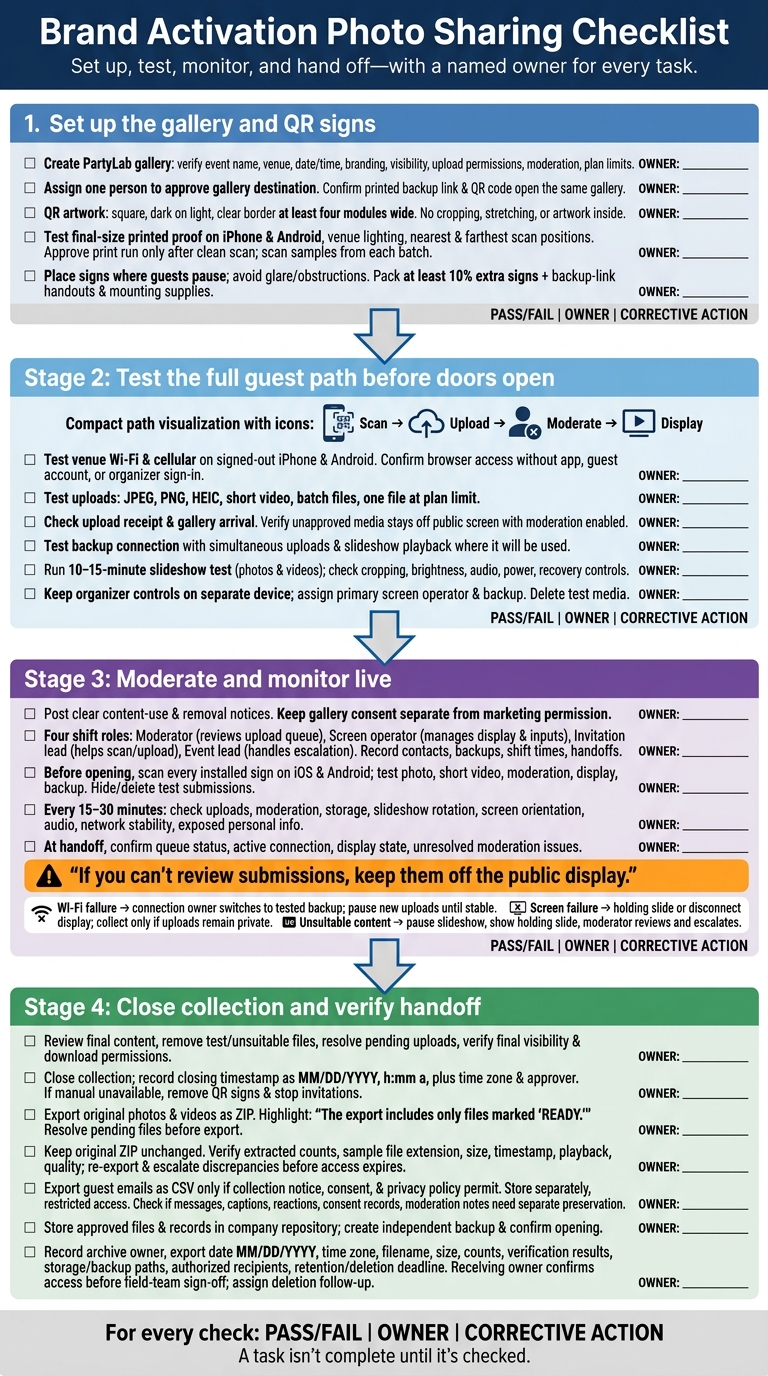
Brand Activation Photo Sharing Checklist
Set Up the Gallery and QR Signs
Create the PartyLab Event
Create the activation gallery in PartyLab using the exact event name, venue, and U.S.-formatted date and time. Review branding, visibility, photo and video upload permissions, guestbook messages, reactions, guest email collection, and moderation controls. Before approving artwork, check the plan’s limits for guest count, uploads, storage, individual file size, and access duration.
Put one person in charge of approving the gallery destination. Copy the event link from the dashboard into the master asset folder alongside the QR image, event details, and artwork version date. Check that the readable link and QR image open the same gallery. Use these approved assets on every sign and staff handout.
Prepare and Test QR Print Files
Download the highest-quality printable QR file available. Check whether PartyLab offers SVG or a PNG large enough for printing. Keep the code square and dark on a light background, with a clear border at least four modules wide. Don’t crop or stretch it, or place artwork inside it.
Add a short upload invitation, a printed backup link, and a brief notice explaining whether submissions may appear in the gallery or on a public screen. Keep marketing permission separate.
Print one proof at its final size on the intended stock. Scan it with both iPhone and Android under venue lighting. Check for glare and shadows, confirm the destination, and make sure the backup link is readable. Test from the nearest and farthest positions where guests are likely to scan.
Approve the full print run only after the proof scans cleanly. Then scan samples from each production batch.
Place Table Signs and Pack Supplies
Label sign packs by placement: registration, tables, demo stations, and backdrops. Position signs where guests pause, facing them at an easy scanning angle. Keep codes clear of products, props, glare, and walking paths.
Pack at least 10% extra signs, plus backup-link handouts, stands, clips, removable tape, and scissors. Give staff a one-page handout containing the verified link, guest instructions, content use notice, escalation contact, placement map, and proof-test result.
After packing the signs, move to upload, Wi-Fi, and screen tests.
sbb-itb-46c9b96
Test Uploads, Wi-Fi, and Screens
Once the signs are in place, test the full guest path before doors open.
Test Guest Uploads
Use signed-out iPhone and Android test devices. Scan a printed sign on both venue Wi-Fi and cellular data. Make sure the correct event opens in a mobile browser without an app download, guest account, or organizer sign-in.
Upload a JPEG, a PNG, a HEIC file, a short video, a batch of files, and one file at the plan limit. Check the upload receipt, confirm the media reaches the gallery, and test any enabled prompts. If moderation is on, make sure unapproved media stays off the public screen.
Record the access settings, upload window, moderation status, enabled features, and file-size limit in the team runbook. Log each device, connection, test time, and result. Keep test media until the screen check is done, then delete it.
Check Wi-Fi and Backup Connections
Upload one photo and one short video over both venue Wi-Fi and cellular data from the main guest areas, including the farthest table. Record upload times, signal strength, and dropped connections. If possible, repeat the tests during the busiest available period.
Confirm captive portal requirements, reauthentication, device limits, bandwidth caps, and upload restrictions with venue IT or the provider. Test the backup connection where it will actually be used, with uploads and slideshow playback running at the same time. Coordinate any hotspot with venue IT; access points set up without approval can interfere with event Wi-Fi.
Record network instructions and the troubleshooting contact’s name and phone number. Keep the event link available for guests using cellular data.
After testing the network, check the display path from start to finish.
Set Up the Slideshow Screen
Open the built-in slideshow on the presentation device and select the correct TV or projector input. Run a 10–15-minute test with photos and videos. Check full-screen view, portrait and landscape cropping, brightness, and video audio where intended. If moderation is on, approve a test upload and confirm it appears on-screen without a manual refresh.
Keep the device plugged in. Disable notifications, updates, sleep, and lock settings, and keep organizer controls on a separate device.
Assign a primary operator and a backup who can pause playback, switch inputs, and reconnect the network. Pack a tested backup device, chargers, power strips, HDMI/USB-C adapters, and spare display cables. Add the display input, operator contacts, and recovery steps for failed uploads or a stalled gallery to the runbook.
Plan Moderation and Event-Day Checks
Define Content Rules and Consent
Once the gallery, signs, Wi-Fi, and screen are tested, finalize moderation rules before guests arrive.
Check the live moderation controls before promising review-before-display. Can you hold uploads for approval, reject or remove individual files, pause the public gallery, and disconnect the slideshow independently? Use moderated display for unreleased products, children, customer data, employee privacy, regulated claims, or other brand-safety requirements. If you can’t review submissions, keep them off the public display.
Write a short policy covering confidential material, visible personal data, offensive content, unsafe conduct, and people who haven’t agreed to public display.
Place a clear notice beside the QR code. State who collects uploads, that submissions may appear on a public display, whether they may be retained or reused for campaigns, and how to request removal. Keep marketing email consent separate, optional, and compliant with CAN-SPAM. For minors or situations that need stronger documentation, get written permission from a parent, guardian, or authorized representative.
Assign Shift Roles and Response Steps
Assign four roles for each shift. Put names, phone numbers, shift times, backups, and handoff times on the run sheet.
- Moderator: Reviews the upload queue.
- Screen operator: Handles the display, slideshow, volume, and input.
- Invitation lead: Helps with QR codes and explains what guests can expect from the display.
- Event lead: Serves as the escalation contact.
Hide unsuitable content from the screen and keep only the minimum evidence needed. Hold or reject uploads containing confidential material, visible personal data, unsafe conduct, hate or sexual content, bullying, or clear objections to publication. When in doubt, pause the display and escalate.
Log the file identifier, time, reason, moderator initials, and escalation outcome. Set a clear response target for removal requests. If personal information is exposed or you suspect a security incident, restrict access and notify the event lead and venue security. Don’t address the uploader publicly.
- Wi-Fi failure: The assigned connection owner switches to the backup connection. Pause new uploads until service stabilizes.
- Screen failure: The screen operator switches to a holding slide or disconnects the public display. Keep collecting uploads only if they can remain private.
- Unsuitable content on display: The screen operator pauses the slideshow and shows a holding slide while the moderator reviews the queue.
Give each issue one owner and record its start time, workaround, and resolution.
Run Opening and Live Checks
Just before doors open, check the signs, uploads, and display controls one last time.
Scan every installed QR sign with both iOS and Android phones. Confirm that each opens the correct event, then upload one test photo and one short video. Check that moderation and display controls work as intended.
Replace signs with glare, damage, blocked codes, poor contrast, or obstructed placement. Confirm that the moderator and screen operator can access their controls, the screen shows the correct brand asset, the device is charging, and the backup connection is available. Delete or hide test submissions before opening.
Brief ambassadors on a consistent script. They shouldn’t promise instant display or selection unless it’s guaranteed.
Every 15–30 minutes, check new uploads, moderation status, storage capacity, slideshow rotation, screen orientation, audio, network stability, and exposed personal information. Track active issues and the next review time. At each handoff, confirm the queue status, active connection, display state, and unresolved moderation issues.
Close Collection and Export Files
After the final live checks, close the collection and verify the archive. Lock the final archive, then transfer approved files to the receiving owner.
Review Content and End Collection
Review the final photos, videos, captions, reactions, guestbook messages, and any other enabled content. Remove duplicates, accidental uploads, test files, and anything that violates the campaign’s moderation rules. Check that approved content displays correctly in the gallery and that visibility and download permissions match the closing plan.
Check pending uploads and the event’s upload-window settings. Record the closing timestamp in MM/DD/YYYY, h:mm a format, along with the time zone and approver.
Close the collection before the deadline. If manual closure isn’t available, remove QR signs and stop active invitations. Log the closure owner and time, then verify the export package.
Verify Exports and Hand Off Files
Once the collection is closed, check the export before handing it off. Use PartyLab’s one-click ZIP export for original photos and videos. The export includes only files marked “READY,” so resolve pending files before treating it as final.
Keep the original ZIP unchanged and extract its contents into a temporary verification folder. Compare photo and video counts against the expected collection, tracking photos, videos, excluded files, and pending files separately. Check a representative sample from across the full collection for file extension, size, timestamp, playback, and quality. If anything doesn’t match, re-export and escalate the issue before access expires.
Export guest emails as a CSV only when the collection notice, consent language, and company privacy policy permit follow-up communication. Store the CSV separately with restricted access. Email collection is optional, so the CSV isn’t a complete attendee roster. Check whether guestbook messages, captions, reactions, consent records, and moderation notes need separate preservation. Don’t assume they’re included in the media ZIP.
Store the original ZIP, verified files, QR artwork, event link, final gallery settings, moderation notes, consent documentation, and any exception log in the approved company repository. Create the required independent backup and confirm it opens.
Record the archive owner, export date in MM/DD/YYYY format, time zone, ZIP filename and size, file counts, verification results, storage and backup paths, authorized recipients, and retention/deletion deadline. Log unresolved issues before sign-off. As the final checkpoint, have the receiving owner confirm access before the field team signs off.
Final Setup and Handoff Checklist
Use this checklist to confirm the setup is ready for sign-off. Record pass/fail, owner, and corrective action for each check on the run sheet. If a check fails, assign an owner and test a workaround before doors open.
- QR signs and uploads: Check that approved print files scan at final size on iPhone and Android. Make sure table signs are readable and unobstructed. Record one photo upload to the gallery; test video only if enabled.
- Connections and display: Test an upload while the slideshow plays. Check Wi-Fi at the signs and screen, then test switching to the backup connection. Verify display recovery, including input, power, adapters, restart steps, and the backup device.
Once the workflow runs without issues, confirm who will manage it live. List each shift’s moderator, backup moderator, screen operator, and escalation contact. Check that approved consent notices are posted. Share written steps for failed scans, stalled uploads, screen outages, and removal requests, and specify who can pause the display.
After confirming live readiness, complete the handoff. Record that export verification is complete. Confirm archive and backup owners, access instructions, and retention and deletion deadlines. Deliver the verified files, manifest, and export contact to the named recipient. Assign deletion follow-up to the named owner.
FAQs
How big should my printed QR codes be?
For table cards, make the QR code itself at least 1 inch square. Go up to 1.25–1.5 inches for dim lighting, outdoor settings, or scanning from across the table. For larger displays, use the 10:1 rule: the code should measure one-tenth of the expected scanning distance.
Leave enough white space around the code so phones can scan it easily. Test printed codes under the event’s actual lighting with both iPhone and Android devices.
How many moderators does my event need?
For most events, one dedicated moderator is enough. Choose someone you trust to handle photos, who is comfortable with basic technology and has permission to manage the feed. They should monitor the queue on a phone or laptop throughout the event.
Don’t give this role to staff who are already handling registration, speakers, or other logistics. Your moderator needs time to keep the gallery live and make sure the photos are appropriate.
How long should I retain guest uploads?
Keep uploads open for a few days to a week after your event. About 15%–20% of photos arrive 3–7 days later, once guests are home.
PartyLab gallery access lasts 3 months with Starter or 1 year with Plus and Max. Download your original files as a ZIP archive before access expires so you have permanent copies.