Birthday Party Photo Sharing: 7 Simple Options
Want all the party photos in one place without chasing people later? I’d keep it simple: use a QR code upload page for mixed groups, a group text for small parties, or AirDrop/Nearby Share if everyone is still in the same room.
Here’s the short version:
- QR code uploads work well for iPhone and Android guests and don’t need an app
- Shared cloud albums are better for small groups already using the same service
- Group texts are easy, but photos get buried fast
- AirDrop or Nearby Share is best for sending a few full-size photos on the spot
- Private social albums only work if guests already use that platform
- Disposable camera apps add a fun delayed reveal
- Digital guestbooks collect photos plus short birthday notes
One detail matters more than most hosts expect: many guests share photos the next day, not at the party. So the best setup is one people can use during the event and after it. If you make guests download an app or create an account, fewer people will join—which is why most photo sharing apps end up disappointing hosts.
Quick Comparison
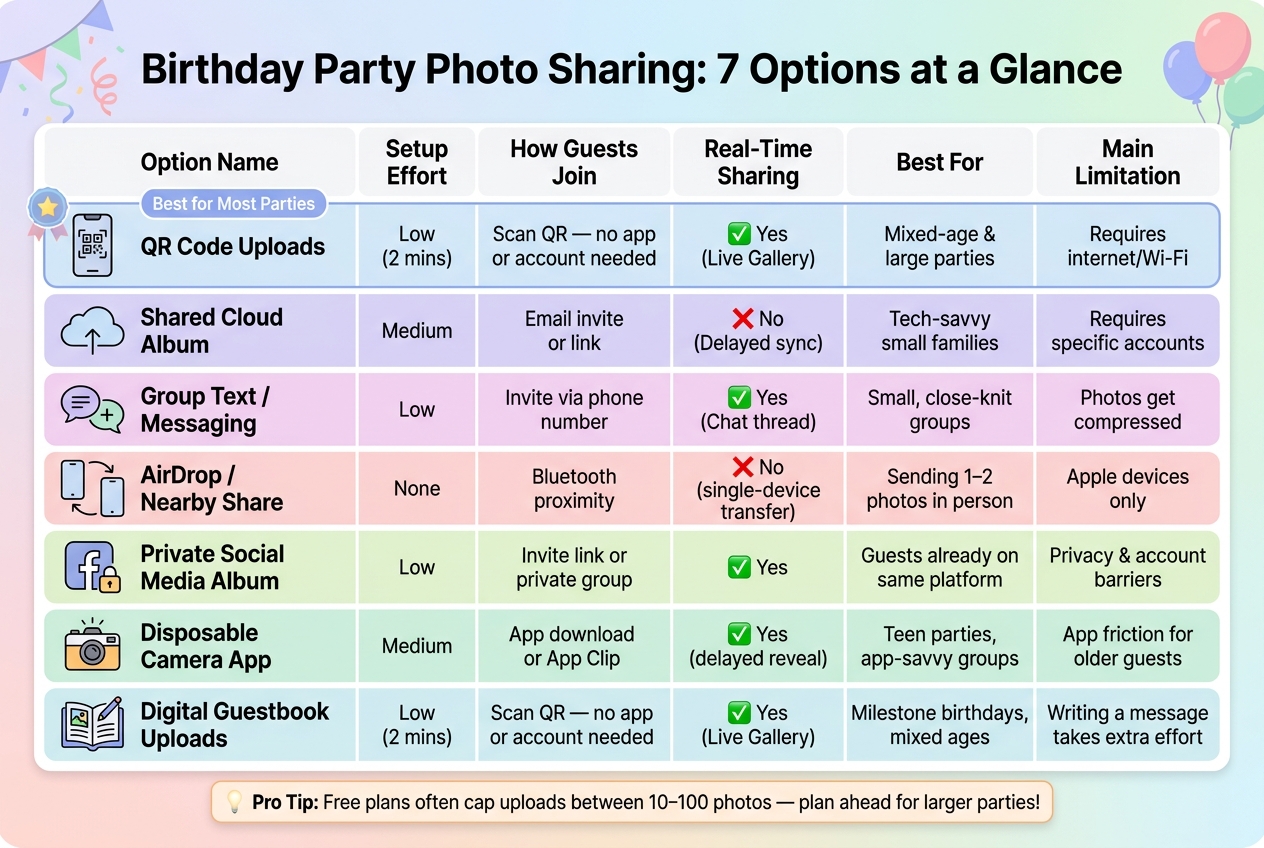
Birthday Party Photo Sharing Options: Quick Comparison Guide
| Option | How people join | Best for | Main drawback |
|---|---|---|---|
| QR code uploads | Scan a code in browser | Mixed groups, medium to large parties | Needs internet |
| Shared cloud albums | Invite by text or email | Small groups on the same platform | iPhone/Android mismatch |
| Group text | Added to chat thread | Small, close friend groups | Hard to sort photos later |
| AirDrop / Nearby Share | Send phone-to-phone nearby | A few full-size photos in person | No iPhone-to-Android sending |
| Private social album | Platform invite | Guests already on one app | Account and privacy limits |
| Disposable camera app | Scan code or open app link | Parties where people want a delayed reveal | No live viewing |
| Digital guestbook | Scan code and upload | Milestone birthdays, mixed ages | Extra step to write a note |
A lot of free tools also limit uploads. In many cases, the cap falls between 10 and 100 photos, which can disappear fast at a busy party. For larger events, that limit matters more than setup time.
If I were picking fast, I’d match the tool to the guest list first, not the phone feature list.
sbb-itb-46c9b96
1. QR Code Guest Photo Uploads
If your guests use both iPhone and Android, QR code uploads are a simple place to start. They’re also the lowest-friction, app-free way to gather birthday photos. You set it up once, put the code on signs or table cards, and guests can upload straight from their phones without installing anything.
How Guests Join
Guests scan the QR code with their phone camera and tap the link that pops up. That takes them to a web upload page where they can pick photos from their camera roll and send them on the spot. It works on iPhone and Android, and if someone misses the code at the party, you can still text them the link later so they can upload after the event.
Best Timing: During vs. After the Party
This setup works well both during and after the party. During the event, photos can show up in a live gallery or slideshow on a TV or projector. After the party, the gallery can stay open for more uploads. That matters more than people think. A lot of guests are busy in the moment, then share photos the next day once things calm down. Sending the link in a thank-you text can bring in that second wave of uploads.
Best Fit by Party Size
QR code galleries can work for a small family gathering or a big milestone birthday. The catch is the upload limit on free plans. Many free options cap uploads somewhere between 10 and 100 photos. For a larger guest list, that fills up fast. In that case, a paid plan usually makes more sense. For example, PartyLab's Starter plan supports up to 100 guests and 2,000 uploads for one event at $44.99.
Main Limitation
The main downside is simple: QR photo sharing depends on an internet connection. If the venue’s Wi-Fi is spotty, uploads may drag or fail. And for some older guests, a quick demo on how to scan the code can help.
2. Shared Cloud Albums
If QR uploads feel a bit too loose, shared cloud albums give you more control. They pull guest photos into one shared folder or album, so everything stays in one place.
How Guests Join
Guests usually join through an email or text invite. You’ll need to turn on posting permissions in the app so people can add their photos.
Here’s the catch with Apple Shared Albums: if you want non-Apple guests to view the album, you can turn on Public Website. That lets them open it in a browser, but they still can’t upload. So this setup is easiest when your guests already use the same app or sit in the same account ecosystem.
Best Timing: During vs. After the Party
There’s still one extra step here: people have to join the album before they post. That’s why shared cloud albums tend to work best during the party, when guests are already taking pictures and in the mood to share them right away.
Best Fit by Party Size
This option is usually a good match for small gatherings, around 10 to 20 people, where most guests are comfortable using the same phone platform.
Main Limitation
The biggest issue is cross-platform friction. Apple-only sharing can get awkward fast if your guest list includes Android users. Apple Shared Albums also come with upload and image-size limits.
3. Group Text or Messaging Threads
If your guests are already texting during the party, lean into that. A group thread is one of the easiest ways to gather photos with almost no extra work, or share photos after a party if you missed the window. It fits best when people already message each other and don't need any setup explained.
How Guests Join
Create the thread before the party and add guests ahead of time. Then they can drop photos straight into the chat as the event happens.
Best Timing: During vs. After the Party
This works best when the thread is active before the party starts. Use it during the party and right after, while everyone is still texting and sharing in the moment.
Best Fit by Party Size
Best for small groups where people already know each other.
Main Limitation
Photos can get buried in the thread, and big videos may be tough to sort later. If you want fast photo sharing between guests who are close by, the next option is a better fit.
4. AirDrop or Nearby Sharing
When group texts start getting chaotic, built-in nearby sharing is often the cleanest move, especially if everyone is still in the same room. If you want full-resolution photos and don’t want to wait for uploads, AirDrop on iPhone and Nearby Share or Quick Share on Android are usually the fastest no-upload path.
How Guests Join
Guests just open their photo app, pick the images they want to send, tap the Share icon, and select the host’s phone. On Android, they choose Nearby Share or Quick Share. Both options work locally, so they don’t need internet or cellular data.
On the host’s phone, Bluetooth and Wi-Fi should be turned on. If you’re using iPhone, set AirDrop receiving to "Everyone for 10 Minutes" so guests who aren’t in your contacts can still find your device.
Best Timing: During vs. After the Party
This works best during the party or right after it ends, while people are still nearby. Once guests head home, this option pretty much disappears.
Best Fit by Party Size
This setup is best for small gatherings. Each guest has to send photos one at a time, so it can get slow if a lot of people are waiting.
Main Limitation
The big drawback is cross-platform support. AirDrop and Nearby Share don’t work between iPhone and Android.
5. Private Social Media Albums
If most of your guests already use the same social platform, a private album or closed group is a simple way to share birthday photos.
How Guests Join
The host sets up a private album or closed group and invites guests. Only invited members can view and post.
Best Timing: During vs. After the Party
Guests can upload photos during the party or after it, as long as they already have access. That makes this option handy for live sharing and for posting pictures later.
Best Fit by Party Size
This works best for small groups where most guests are already on the same app.
Main Limitation
Anyone without an account on that platform can't join in. If you want an option that doesn't require an account, comparing PartyLab vs Snapfish shows that the next choice works better for groups with mixed comfort levels around tech.
6. Disposable Camera Apps
Disposable camera apps give guests a small number of shots, then show the photos later. That film-camera feel changes the mood a bit. Photo sharing doesn’t feel like a chore tacked onto the party. It feels like part of the fun.
How Guests Join
Guests usually join by scanning a QR code. The host sets up the event, chooses the photo limit and reveal time, and then generates the code. At the party, guests scan it to open the camera in their browser, often without making an account.
A simple setup can help more people take part. Put QR codes near spots where people naturally pause, like the cake table, welcome table, or photo backdrop.
Best Timing: During vs. After the Party
This option works best during the party. Guests can snap candid reactions, dancing, and cake-cutting moments while everything stays locked until later. That delayed reveal helps keep people in the moment instead of looking down at their phones to review each photo right away.
Best Fit by Party Size
This setup can work for a small family dinner or a big milestone party. Paid plans usually support larger guest counts, so it can scale up when needed.
Main Limitation
The main trade-off is simple: guests can’t view photos live. iPhone and Android users may also run into slightly different join screens. If you want guests to upload photos right away instead of waiting for a reveal, the next option is a better match.
7. Digital Guestbook-Style Uploads
If you want more than a shared photo dump, a digital guestbook gives you that extra layer. Guests can add short messages to their photo uploads, so the host ends up with one organized keepsake instead of a random camera roll.
How Guests Join
Guests scan a QR code or tap a link, then upload a photo and a short birthday note right from their browser. The photo and message stay paired in the same gallery, which makes it easy to use during the party and easy to look back on later.
Best Timing: During vs. After the Party
This works well during the party, especially near the cake or gift table. Then you can send the link again the next day for anyone who forgot to upload or wants to add more.
Best Fit by Party Size
It’s a good match for milestone birthdays, mixed-age guest lists, and larger parties where you want both photos and written notes.
Main Limitation
Writing a message takes a bit more effort, so some guests will post only a photo or skip the upload altogether.
Choosing the Right Option by Party Size and Guest Tech Comfort
The right photo-sharing setup comes down to two things: what phones your guests use and how comfortable they are with tech. A mixed guest list usually means both iPhone and Android users are in the room, so Apple-only options can get awkward fast. The chart below makes the choice easier.
The fastest pick also depends on who’s coming and whether they need an app-free way to join, as detailed in our event photo guides.
| Method | Setup Effort | Guest Join Method | Real-Time Sharing | Best For | Main Limitation |
|---|---|---|---|---|---|
| QR Code Uploads | Low (2 mins) | Scan QR (No app/account) | Yes (Live Gallery) | Mixed-age & large parties | Requires internet/Wi-Fi |
| Shared Cloud Album | Medium | Email invite or link | No (Delayed sync) | Tech-savvy families | Requires specific accounts |
| Group Text / Messaging | Low | Invite via phone number | Yes (Chat thread) | Small, close-knit groups | Photos get compressed |
| AirDrop / Nearby Share | None | Bluetooth proximity | No (single-device transfer) | Sending 1–2 photos to one person | Apple devices only |
| Private Social Media Album | Low | Invite link or private group invite | Yes | Guests already on the same platform | Privacy & account barriers |
| Disposable Camera App | Medium | App download or App Clip | Yes | Teen parties or app-savvy groups | App friction for older guests |
| Digital Guestbook Uploads | Low (2 mins) | Scan QR (No app/account) | Yes (Live Gallery) | Milestone birthdays, mixed ages | Writing a message takes extra effort |
Here’s the simple version: for small groups, group text or a cloud album usually works fine. For mixed-age groups or bigger parties, QR uploads tend to be the easiest path because guests can join without an account or extra app.
After you choose a method, put it in two places: your invitation and your photo table. That way, guests see it before the party starts and again when they’re ready to share photos.
Conclusion
After you weigh party size and guest comfort, go with the option people can use right away. Pick for your guests, not for the tech.
Make the choice before the party. Put the link or QR code on the invitation, then place it somewhere guests will spot without effort. That simple setup is what gets more people to join in. If guests don't need to download an app or make an account, participation goes up.
Match the method to your guest mix, and the photos will come to you. Choose the simplest path, make it obvious, and you'll end the party with one shared gallery. The best system is the one that fades into the background while the party keeps moving.
FAQs
Which photo-sharing option is best for a mixed iPhone and Android guest list?
For a mixed iPhone and Android guest list, a browser-based QR code upload gallery is the best option.
It sidesteps platform-specific limits like AirDrop or iCloud Shared Albums. Guests can scan the code, open a mobile web page, and upload photos right away without downloading an app or creating an account.
How can I collect photos from guests after the party ends?
Use the same shared upload link or QR code from the event. In most cases, the upload window stays open after the party, so guests can add photos from home whenever it works for them.
If you need more time, you can extend the upload window from your dashboard. For future parties, it also helps to print the QR code on party favors or thank-you cards. That little nudge can remind guests to share photos after they’ve had a chance to check their camera rolls.
What should I do if my venue has weak Wi-Fi or no internet?
If your venue has no internet, you can still collect photos with AirDrop. It uses Bluetooth and peer-to-peer Wi‑Fi, so Apple devices can send full-quality photos even without an internet connection.
There is one catch: AirDrop only works between Apple devices, and guests need to be close by for it to work. So it’s a handy fix for small groups in the moment, but not always the best fit for a big crowd.
If you’re dealing with a larger guest list or a mix of iPhones and Android phones, ask guests to upload their photos to a shared gallery later, once they have solid cell service or Wi‑Fi.