
Baby Shower Photo Sharing: Best No-App Solutions
If I want baby shower photos in one place without chasing guests later, I’d use one private browser page with both a QR code and a share link. That setup works well because guests can upload from their phones with no app, no account, and no long setup. And with 91% of U.S. adults owning a smartphone in 2025, this type of photo sharing fits most guest lists.
Here’s the short version:
- Best pick for most in-person showers: photo sharing methods compared
- Best for remote guests: shareable web link
- Best for a screen at the party: browser-based live album
- Best for group texts: texted upload link
- Best for photo + note keepsakes: digital guestbook photo page
What I’d check before the shower:
- Print the QR code and a backup URL
- Test uploads on iPhone and Android
- Check Wi‑Fi if you want a live screen display
- Turn on moderation if you want to review uploads first
- Leave the gallery open for 24–48 hours after the event
Quick Comparison
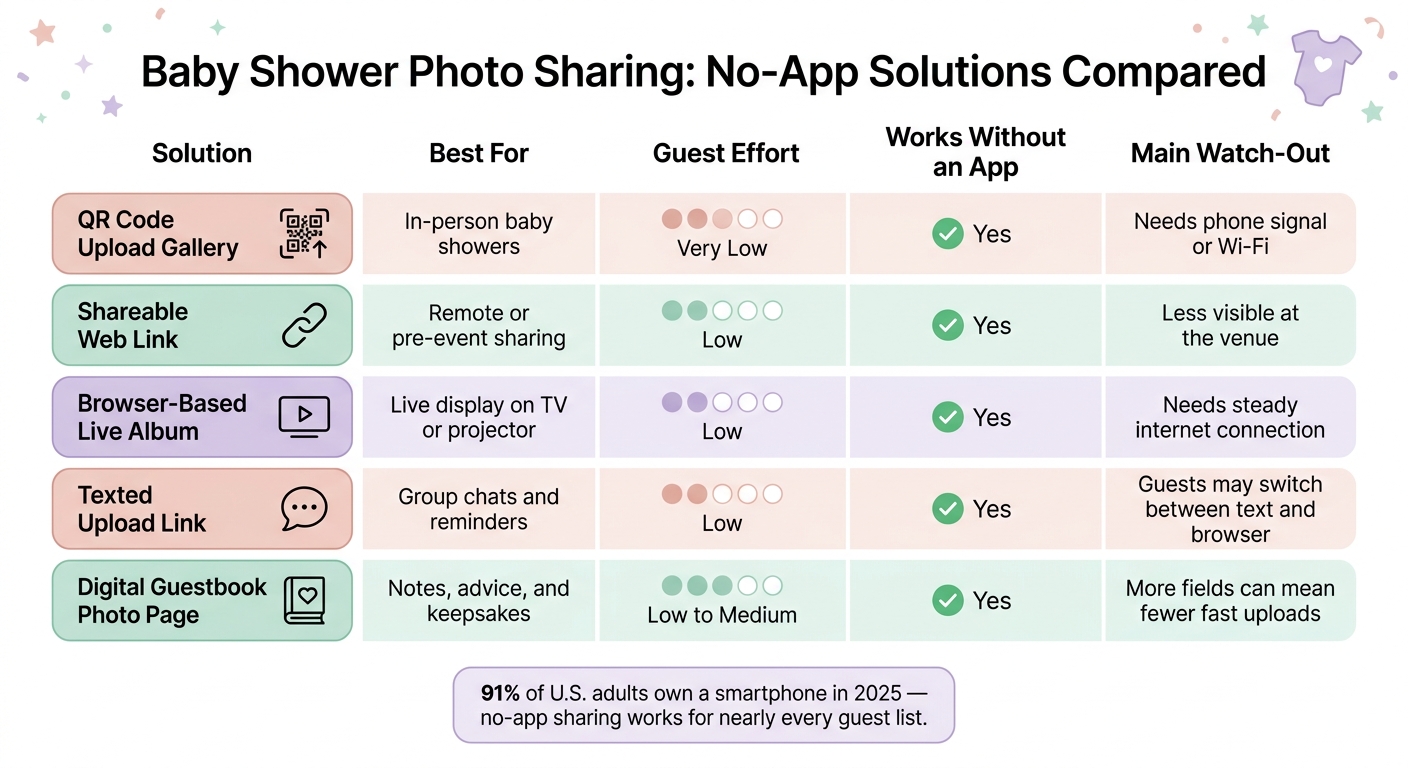
Baby Shower Photo Sharing: No-App Solutions Compared
| Option | Best for | Guest effort | Works without an app | Main watchout |
|---|---|---|---|---|
| QR code upload gallery | In-person baby showers | Very low | Yes | Needs phone signal or Wi‑Fi |
| Shareable web link | Remote or pre-event sharing | Low | Yes | Less visible at the venue |
| Browser-based live album | Live display on TV/projector | Low | Yes | Needs a steady internet connection |
| Texted upload link | Group chats and reminders | Low | Yes | Some guests may switch between text and browser |
| Digital guestbook photo page | Notes, advice, and keepsakes | Low to medium | Yes | More fields can mean fewer fast uploads |
I’d keep it simple: one private gallery, shared in more than one way, is usually enough to collect photos, short videos, and guest notes without the usual back-and-forth.
sbb-itb-46c9b96
1. PartyLab QR Code Upload Gallery
PartyLab gives the host one browser-based upload page for the whole baby shower, which keeps things simple from the start. Guests just scan the QR code or open the link in a browser, then upload photos straight from their camera roll. No app. No account. No password. No social profile. That low-friction setup makes it much easier for people to actually share what they took.
PartyLab supports JPEG, PNG, HEIC, and WebP images, along with MP4 and MOV videos. File limits depend on the plan:
- Starter: 250 MB per file
- Plus: 500 MB per file
- Max: 1 GB per file
For a baby shower, that’s usually more than enough for photos and short video clips.
As guests upload, new photos show up in the shared gallery within seconds, so you get one live collection for the event. If you want to make it part of the party, the host can connect a laptop to a TV or projector and use PartyLab’s built-in slideshow mode. That way, new uploads appear on screen during the shower. A simple setup works well here: print the QR code near the gift table, then run the slideshow on a TV or projector so guests can watch the gallery grow in real time.
On the host side, PartyLab also includes moderation and a full-gallery download. Hosts can turn on moderation so uploads appear only after review. After the shower, the full gallery can be downloaded as one original-quality ZIP file. Access lasts 3 months on Starter and 1 year on Plus and Max, so it’s smart to download the ZIP before access ends.
If you want the same browser-based setup but don’t plan to print a QR code, the next option uses a shareable web link.
2. Shareable Web Link Upload Page
A shareable web link gives guests one private upload page they can open right in their phone’s browser. No app, no setup headache. You can send the link by text, email, or through a baby shower website. You can also print it on a sign at the venue so people can upload on the spot.
This setup works well if you want guests to send photos before the shower or from different places.
Guests just tap the link, open it in Safari or Chrome, pick photos or videos from their camera roll, add a name or short message if they want, and upload. Because it runs in the browser, iPhone and Android guests follow the same steps.
For a simple setup, pay attention to file support and privacy. The upload page should accept:
- JPEG
- PNG
- MP4
- MOV
Also check the file-size limit before the event. That small detail can save you from last-minute problems. Privacy usually comes down to a private URL, so it’s worth deciding early how broadly you want to share it.
If moderation is available, turn it on. That way, you can approve uploads before they show up in the gallery. Keep the link active until the late uploads come in, then download and back up the full collection before access ends.
If you want uploads to appear live during the shower, the next option keeps the gallery updating in real time.
3. Browser-Based Live Album
A plain upload page can do the job, but it often feels a bit flat. A browser-based live album adds something more fun: guests can upload photos and see new images show up in the same private gallery as the shower happens. For a baby shower, that live feed is the big draw.
Hook up a laptop or tablet to a TV or projector, and the room can watch the album fill up during games, gift opening, or dessert. It turns photo sharing into part of the event instead of something people deal with later.
Before the shower, check the basics:
- Support for JPEG, PNG, HEIC, and phone video formats
- Per-file upload limits
- Total storage limits
- A direct URL for guests who can't scan the QR code
You’ll also want to decide between instant posting and moderation. If you plan to review uploads first, say so on the sign. Use this exact line: "Upload your photos here; approved pictures will appear in the live album."
One last thing: test the upload flow on both iPhone and Android before guests arrive. After the event, export the ZIP before access ends. And if you'd rather let guests send photos by text instead of opening a page, the next option is simpler.
4. Text-to-Upload or Texted Upload Link
A texted upload link sends guests straight to the upload page by SMS. It works especially well in group chats and invitation threads because it skips the QR scan. If your guests are already texting with each other, this is often the easiest way to get photos and videos uploaded without any extra steps.
The guest flow is simple: tap the link, pick photos or videos from the camera roll, and press Upload or Send. Since the files go through a browser upload, guests can send full-resolution photos and videos instead of dealing with MMS compression or file size caps. The upload link works on iOS Safari, Android Chrome, and Samsung Internet.
Some galleries show uploads right away. Others hold them for review first. Either way, save the full gallery as a ZIP after the shower. It’s also smart to send a follow-up text 24–48 hours after the event as a reminder for guests who meant to upload during the shower but forgot.
If you want more of a keepsake feel, the next option uses a digital guestbook photo page.
5. Digital Guestbook Photo Page
If you want the upload page to feel more personal, a digital guestbook adds a message field to the same no-app flow. Guests can attach a photo, a short video, and a note or piece of advice, which turns the gallery into a keepsake.
Guests open a private link or scan a QR code, upload a photo or short video, and add a note before they submit. That message field is the part that changes a simple upload into something people will want to look back on.
If you plan to show submissions on a TV or screen, turn on moderation so only approved photos and captions appear live.
After the shower, keep the photos and notes together by exporting the full gallery. PartyLab exports the original files in one ZIP, so the photos, videos, and guest notes stay saved together in one place.
Pros, Cons, and Best-Fit Scenarios
The table below helps you line up each no-app option with your guest list, venue setup, and photo-sharing goals. All of these can work. The better pick comes down to what matters most to you: visibility at the venue, sharing with people at home, collecting notes, or keeping things fast and simple.
| Solution | Setup for Host | Guest Friction | Best in Person | Best for Remote | Message Collection | Key Tradeoff |
|---|---|---|---|---|---|---|
| PartyLab QR code upload gallery | Create the event, then display or share one QR code and link | Very low - no app or account needed | Excellent - QR code and live gallery work well at the venue | Very good - shareable link works for guests who can't attend | Strong - captions, reactions, and guest info export is included | More features also mean more setup time and a higher price |
| Shareable web link upload page | Copy the URL into an invite, email, or group text | Low - guests open the link in a browser | Good when paired with a printed short URL | Excellent - easy to include in digital invitations | Usually limited unless the service adds a message field | Less visible at the venue than a printed QR code |
| Browser-based live album | Create an album, generate access details, optionally connect to a screen | Low for uploading; moderate if guests must navigate a separate gallery view | Excellent when a TV or projector is available | Good if the link stays active after the event | Varies by provider; captions may be available | Requires reliable venue Wi-Fi and some moderation |
| Text-to-upload or texted upload link | Configure a number or send a link by text | Low for guests comfortable with texting; higher if they must switch between messages and a browser | Good when the host wants to prompt uploads during the shower | Very good - a direct text prompt works well for remote family | Usually limited to quick uploads, not long messages | Carrier charges or phone verification may apply |
| Digital guestbook photo page | Create a page with prompts for photos and written messages | Low to moderate - guests complete more fields | Best for structured activities like advice for the parents-to-be | Excellent for grandparents and absent guests leaving messages | Strongest option for written notes alongside photos | More structured participation can mean fewer spontaneous uploads |
If you want the most all-in-one choice, PartyLab stands out. It asks more from the host up front, but you get more in return. The Starter plan costs $44.99 per event and includes up to 100 guests, 2,000 uploads, and 25 GB of storage.
That said, the extra tools come with a higher price and more setup than a plain upload page. If you just want a simple link guests can tap and use, a basic web upload page may feel like the easier route. If you want photos, captions, reactions, and guest details in one place, PartyLab makes a stronger case.
Final Recommendation
The simplest baby shower setup is one private gallery paired with both a QR code and a shareable link.
Here’s why this works so well: in-person guests can scan the QR code on a small sign near the entrance or dessert table, while relatives who can’t make it can use the same private link from anywhere. Everything lands in one spot, which means fewer missing uploads, fewer duplicate files, and a lot less back-and-forth later.
Keep the upload window open for at least 24–48 hours after the shower so guests who meant to share photos during the event still have time to send them in.
A simple way to split the setup:
- Use the QR gallery for guests at the shower
- Use the web link for guests joining from afar
- Use the live album for a screen display
- Use the guestbook page for messages
That gives guests a clear path without making the setup feel fussy.
Before the shower, do a quick check:
- Test the QR code on both an iPhone and an Android phone
- Confirm the venue’s Wi‑Fi if you plan to run a live slideshow
- Set the privacy controls before sharing the link, since anyone with the link can access it
FAQs
How private is the photo gallery?
The photo gallery stays private to your event. Guests can upload photos through a shared event link or QR code, and everything lives in one place where you and invited viewers can browse and download images.
It can stay open after the event, too. And guests don’t need to create an account or install an app to view the gallery.
What if guests have poor cell service?
Guests can still join in by taking photos during the baby shower and uploading them later once they have a stable connection.
Because the browser-based upload system doesn't need an app or account, guests can just scan the QR code or open the shared link when their signal improves or after they connect to the venue's Wi-Fi. It also helps to test the venue's Wi-Fi ahead of time so things go smoothly.
Can I let guests upload after the shower?
Yes. You can leave the upload window open after the shower, so guests can add photos days later when they remember.
PartyLab collects uploads through a browser link or QR code and sends them into a live gallery. After the event, you can download all photos as a ZIP in original quality.