
Anniversary QR Code Video Guestbook Checklist
I’d test your anniversary video guestbook at least 48 hours before the party - and plan for two backups afterward. With PartyLab, guests can scan a QR code to leave videos, photos, or written wishes in their phone browser, without an app or account.
Here’s the checklist I’d follow:
- Before the party: Check plan limits, privacy settings, and access dates (or compare PartyLab vs Eventbrite if you need RSVP tools too). Test uploads on iPhone and Android, then prepare readable QR signs, soft lighting, and message prompts.
- During the party: Assign a helper to assist guests and review uploads. Test the slideshow’s screen and sound, set viewing times, and keep offline files ready.
- After the party: Send a final reminder, review submissions, and <u>export before access ends</u>. Check the files and save two copies in separate locations.
I’d give each task an owner and deadline so the couple can enjoy the celebration - not troubleshoot it.
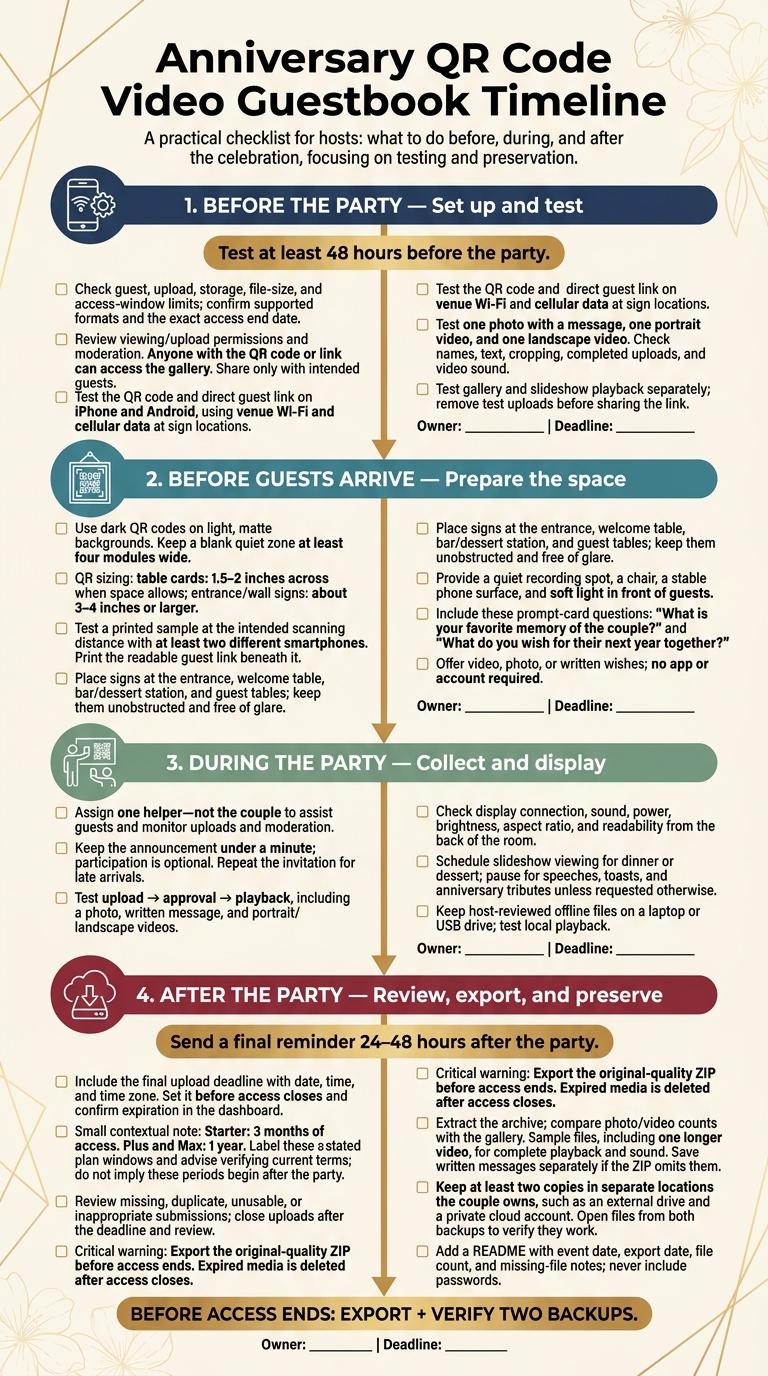
Anniversary QR Code Video Guestbook Timeline
Before the Party: Set Up and Test PartyLab
Create the Event and Check Plan Limits
Enter the couple’s names, anniversary milestone, and event date in MM/DD/YYYY format. Give the celebration a clear title so it’s easy to tell apart from test events. Save the event’s QR code and guest link, but don’t share them until testing is complete.
Before purchasing, check the current guest, upload, storage, file-size, and access-window limits. Confirm which formats PartyLab supports and the exact date access ends. Set a guest upload deadline, plus an earlier reminder to export the files.
Review who can view and upload. Turn on moderation if messages need approval before they appear. Anyone with the QR code or link can access the gallery, so share it only with intended guests. Ask a trusted helper to monitor contributions, and have them practice reviewing and removing a test upload.
With limits and permissions checked, test the devices and networks guests will use.
Test Video, Photo, and Written Message Uploads
Run through the guest experience from start to finish. Scan the QR code using both an iPhone camera and an Android camera, then open the direct guest link. At every sign location, test uploads over venue Wi-Fi and cellular data. Make sure the correct event title appears and every upload finishes.
Upload one photo with a message, one portrait video, and one landscape video. Check the photo’s crop, the message text, and the uploader’s name. Play both videos to confirm they have sound. Supported formats include JPEG, HEIC, MP4, and MOV.
Test gallery playback and slideshow playback separately. Save screenshots of successful tests, then remove all test uploads before sharing the link.
sbb-itb-46c9b96
Before Guests Arrive: Set Up Signs and Recording Area
Once test uploads work, move the guestbook into the party space.
Print and Place QR Code Signs
Print the QR code in dark ink on a light, matte background. Leave a blank quiet zone at least four modules wide, and keep text, logos, borders, and patterns away from the code. For table cards, use a code at least 1.5–2 inches across when space allows. For entrance or wall signs, aim for about 3–4 inches or larger.
Before printing the full batch, test a printed sample from the intended scanning distance with at least two different smartphones.
Use this sign copy:
Scan to leave an anniversary video message. Open your phone camera, scan the code, and follow the prompts. No app required. Video, photo, and written wishes welcome.
Print the readable guest link beneath the code.
Place larger signs at the entrance, welcome table, and busy spots like the bar or dessert station. Add small table cards for seated guests. Keep signs flat, well lit, and clear of flowers, candles, menus, or frames. Check each spot for glare, and save a high-resolution PDF or PNG for quick reprints.
Prepare Lighting and Message Prompt Cards
Choose a recording spot away from speakers, kitchen traffic, doorways, and walkways. Provide a chair and a stable surface for a phone, leaving enough room for a group message.
Place soft light in front of guests, not behind them, and avoid a bright window in the background. Check both front- and rear-camera views under the lighting guests will use.
Print prompt cards with:
What is your favorite memory of the couple?
What do you wish for their next year together?
Encourage short toasts, with longer stories optional. Add:
Keep the phone steady, leave the microphone uncovered, and check audio before uploading.
Offer written wishes for anyone who would rather not record.
During the Party: Collect Messages and Show the Slideshow
Announce the Guestbook and Monitor Uploads
Once the signs and recording area are ready, invite guests to take part. Keep the announcement under a minute, and make it clear that the guestbook is optional. Just before dinner, speeches, or dancing, point out the QR signs and recording area. Explain that approved uploads may appear live, then repeat the invitation for late arrivals.
Put one helper - not the couple - in charge of uploads. They should watch the moderation queue, approve or remove uploads as needed, and alert the host if the gallery or slideshow stops updating. Handle any problems quietly, without publicly identifying the guest. Meanwhile, check the display guests will see.
Check Slideshow Equipment and Set Viewing Times
Open the slideshow on the laptop and display you'll use at the party. Test the HDMI or wireless connection, audio, power, brightness, and aspect ratio. Check the view from the back of the room, and place the screen away from staff paths and the photographer’s sight lines.
Run a photo, a written message, and videos in both portrait and landscape through upload, approval, and playback. Make sure the text is easy to read and video sound plays through the intended speakers. Confirm that photos, short clips, and longer clips all display correctly.
Keep host-reviewed files on a laptop or USB drive in case the venue’s internet fails. Use the ZIP export as your offline backup, and test local playback before guests need it.
Plan slideshow viewing for dinner or dessert, and give the DJ or emcee the start and stop times. Pause for speeches, toasts, and anniversary tributes unless the couple asks otherwise. Keep the audio low while guests are talking.
After the Party: Review, Export, and Back Up
Once the party ends, shift from collecting uploads to reviewing and saving them.
Set a Final Upload Deadline
Send one last reminder by text or email 24–48 hours after the party, and include the final upload deadline. Use the full U.S. date format, including the time and time zone. Set the deadline before access closes, and check the exact expiration in the PartyLab dashboard. Starter includes 3 months of access; Plus and Max include 1 year.
Before closing uploads, check the gallery for missing, duplicate, unusable, or inappropriate items. Follow up privately on any promised anniversary messages that haven’t arrived. If your controls allow it, remove or hide unsuitable uploads. Close uploads only after the deadline has passed and you’ve finished your review.
Then move straight to exporting and backing up.
Export Files and Check Backups
Download the original-quality ZIP archive before access ends to save the anniversary messages. Expired media is deleted after access closes. Extract the ZIP into a clearly named folder, then check that the photo and video counts match the gallery.
Open several sample files, including one longer video. Check that videos play from start to finish with sound and that photos are sharp and upright. If the ZIP leaves out text, save it in a document or export the guestbook data separately. Keep the original folder structure, then copy files into Photos, Videos, Messages, and Slideshow Favorites.
Save at least two copies in locations the couple owns, such as an external drive and a private cloud account. Add a short README with the event date, export date, file count, and notes about missing files or important messages. Open files from both backups to confirm they work. Store passwords in a password manager - not in the README.
Conclusion: Final Guestbook Checklist
Use this checklist to confirm each step before the event wraps up.
Before guests arrive: Check event settings and plan limits. Test photo and video sharing and written messages. Put QR signs in high-traffic spots, and test soft lighting, prompt cards, and slideshow playback.
During the party: Ask one helper to announce the guestbook and help guests upload their messages. Assign someone to approve uploads before they appear in the gallery. Run the slideshow at the planned viewing time.
After the party: Send a final upload reminder with the deadline, finish reviewing submissions, and export everything before access ends. Check file counts, playback, and saved messages. Open both backups to confirm they work and match the export.
FAQs
How can guests without smartphones leave messages?
Guests need a smartphone to leave messages in PartyLab’s digital guestbook. They can open the upload page in a mobile browser to submit photos and videos - no app or account needed.
What should we do if a video upload fails?
If your video won’t upload, check the file format and your plan’s size limit. PartyLab supports common formats like MP4 and MOV. Upload limits are 250 MB for Starter, 500 MB for Plus, and 1 GB for Max.
PartyLab runs in your phone’s browser - no app needed. Before trying again, make sure your internet connection is stable.
Should we ask permission before sharing guest videos?
Asking permission before sharing guest photos or videos comes down to personal preference and event etiquette. Anyone with your link or QR code can access your PartyLab gallery.
As the host, you can turn on optional moderation to review uploads before they appear in the gallery. You can also remove content you don’t want to keep or share.